

AB-900 Step by step · Lab 13
Fix SharePoint Oversharing Before Copilot Finds It
Find overshared sites, ask owners to review access, hide sites from Copilot and lock the sensitive ones with SharePoint Advanced Management.
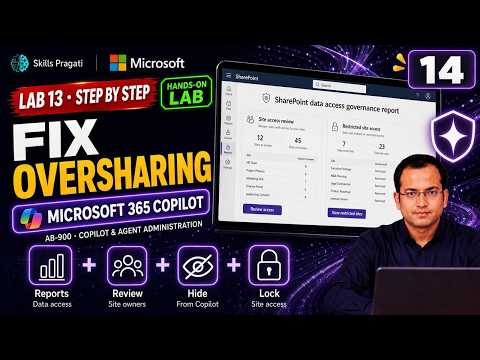
Copilot never breaks permissions. But it finds everything a person can already open, in seconds. If a site is shared too widely, Copilot makes that visible the first time someone asks the right question. So the fix is not in Copilot. It is in SharePoint.
This is the clean-up we do at Pragati Industries in Lab 13 of the AB-900 course.
Four tools, in order
- Find the overshared sites: data access governance reports.
- Fix them: a site access review asks the owners to clean up.
- Hide a site while they do: restricted content discovery keeps it out of Copilot and search.
- Lock the most sensitive sites: restricted site access lets only chosen groups in.
All four come with SharePoint Advanced Management, which is included with Copilot licences.
Step 1: Find the overshared sites
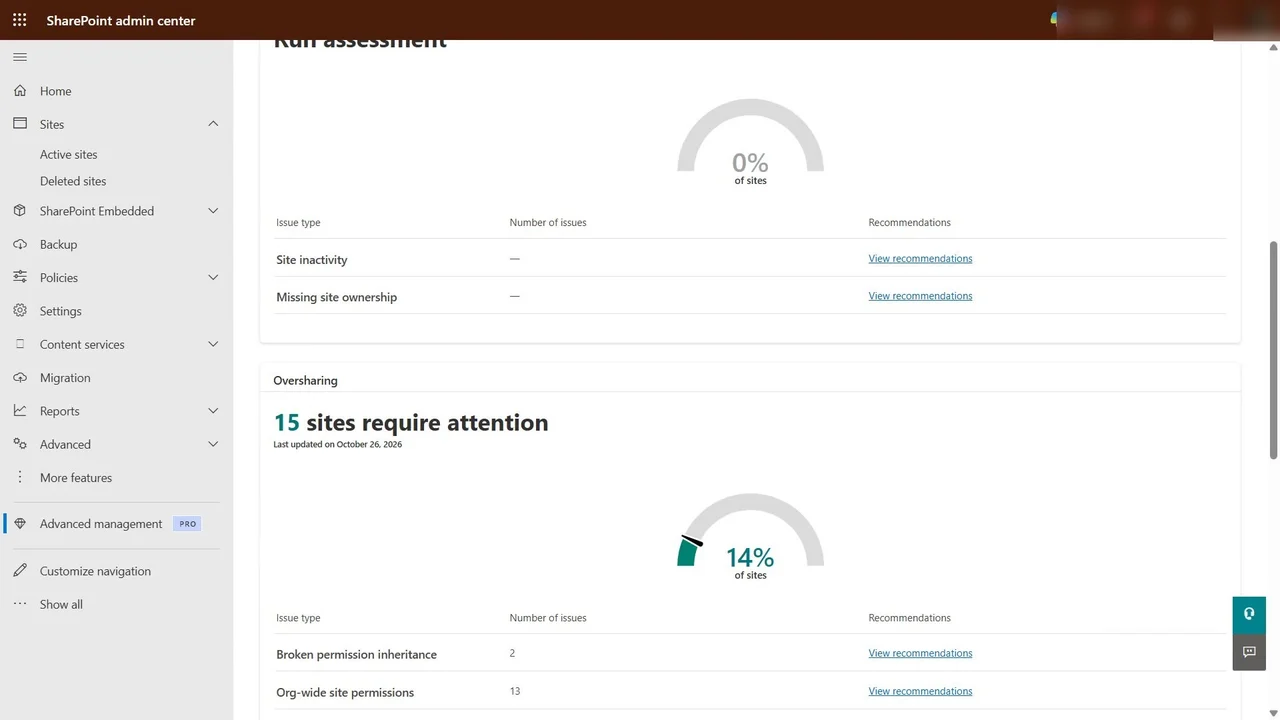
In the SharePoint admin center → Advanced management, the content management assessment lists the sites that need attention for oversharing, each with recommendations.
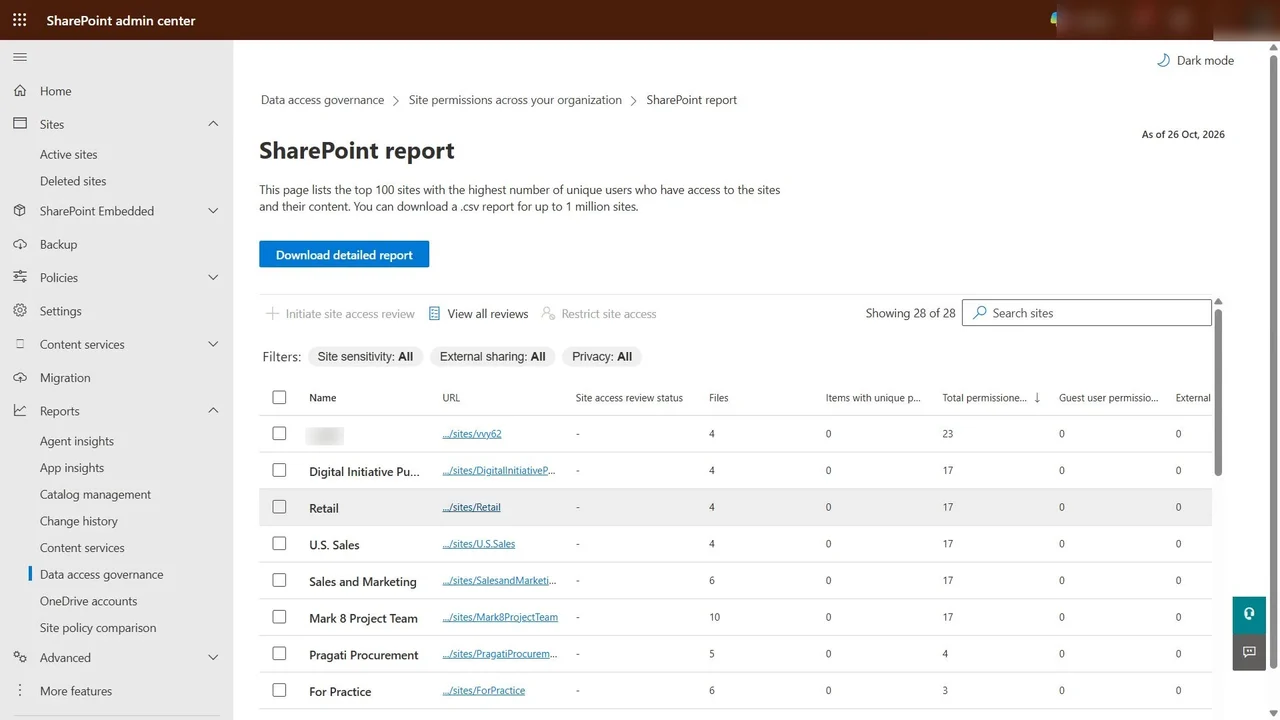
Then Reports → Data access governance → Site permissions across the organization → View report. For each site: how many people have access, guests, groups, anyone links, and permissions for everyone except external users.
Step 2: Let the owners decide
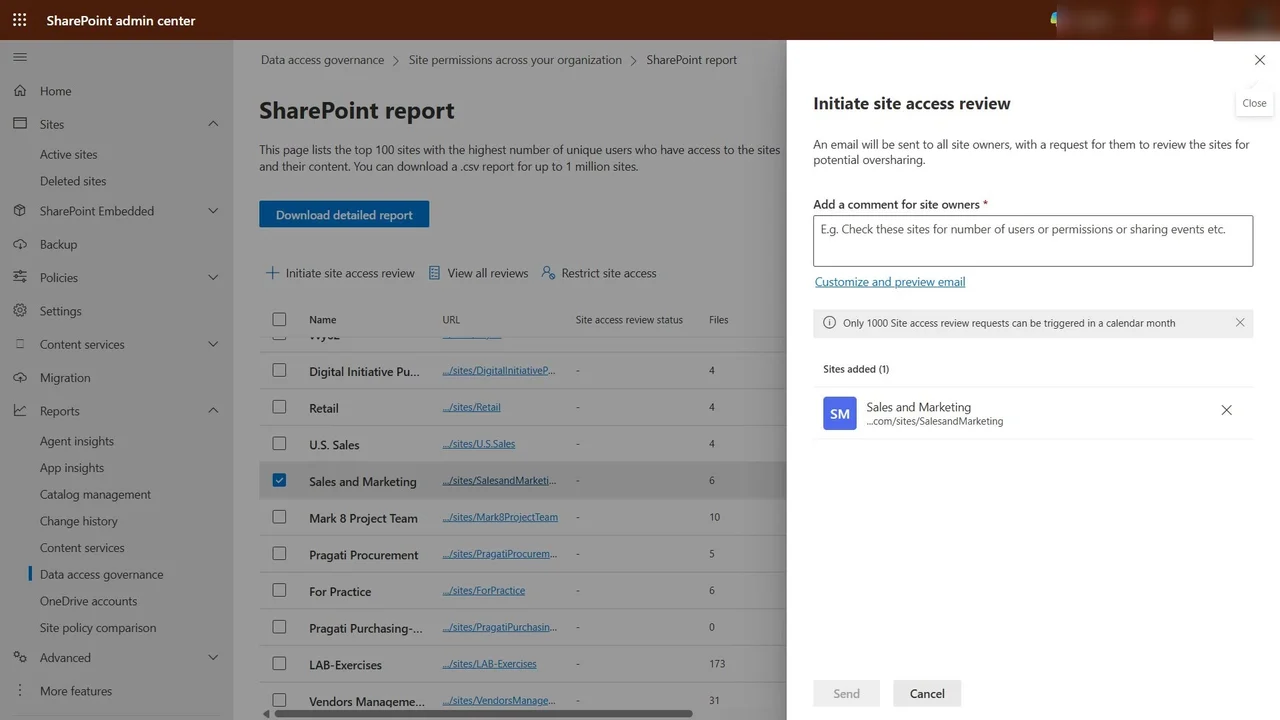
The admin should not judge every site alone. Select Sales and Marketing, open to 17 people, and Initiate site access review. Its owners check who has access and remove who should not. Add a comment for them, and Send; the review status shows in the report.
Step 3: Hide a site from Copilot while they work
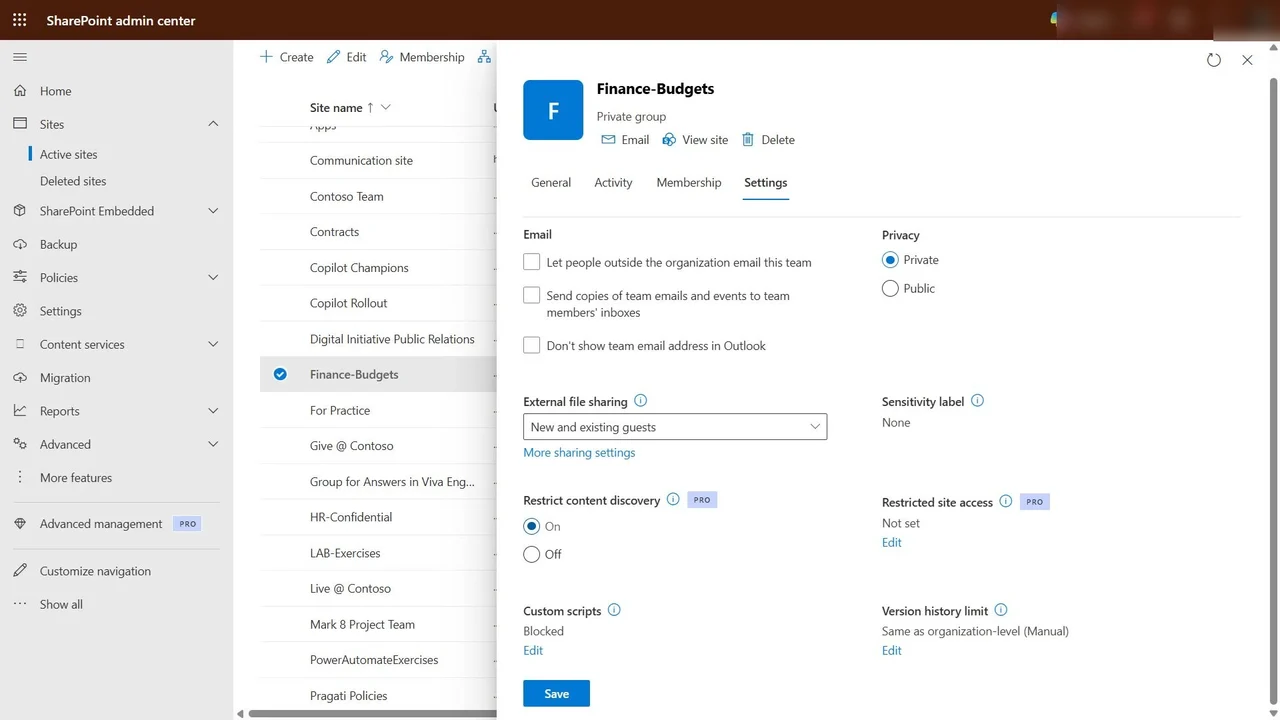
Active sites → Finance Budgets → Settings → Restrict content discovery: On. The site still works for its members, but its files no longer appear in Copilot answers or organisation-wide search for people who never worked there.
Step 4: Lock the most sensitive site
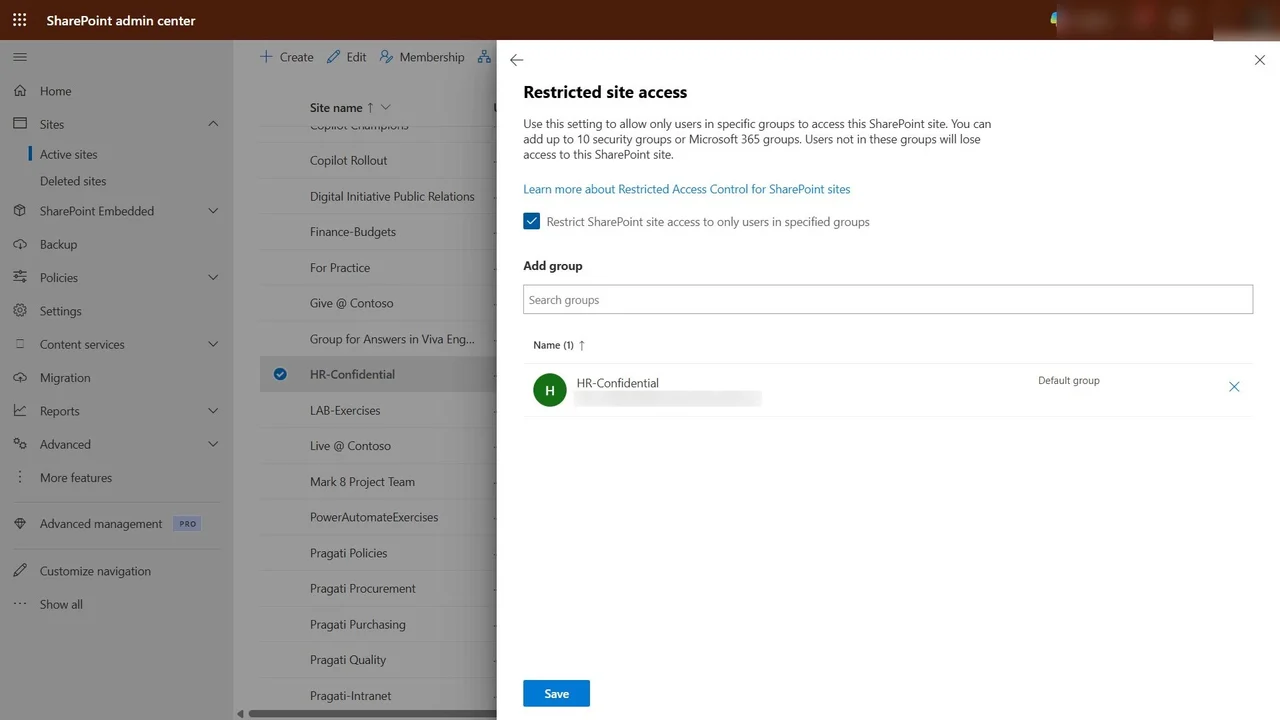
The HR site needs more than hiding. HR Confidential → Settings → Restricted site access → Edit, and restrict access to users in specified groups. The site’s own group is in by default, and that is all HR needs.
How you know it worked
Joni, who was given read access in an earlier lab, is not in the HR group. After Save, she, and Copilot on her behalf, lose access to the site, even with a sharing link. Copilot answers as the user: whatever blocks the user, blocks Copilot.
Which one when
- Restricted content discovery: one site, members can still open it, Copilot and search for everyone else cannot.
- Restricted site access: one site, only chosen groups get in at all.
- Restricted SharePoint Search: the whole tenant; Copilot and search see only an allowed list of up to a hundred sites. A temporary measure, set in PowerShell.
What a tech lead should take away
- Run the reports before the licences go out. Oversharing is cheaper to fix before Copilot finds it.
- Owners review, admins enable. Site access reviews scale; one admin judging every site does not.
- Keep it fixed: site lifecycle policies, owner attestation every six months and change history stop old, ownerless sites from becoming the next problem.
Do it yourself
- The full AB-900 courseEvery Part, free on YouTube, in order
- Hands-on lab guideThe exact steps, what it costs, how to clean up
- Practice simulationRehearse every click in your browser; the first lab is free
- Mock examFree 10-question sample, then the full timed mock scored by domain
Lab guides, practice and full mock exams come with a subscription. See the plans