

Build Apps with Microsoft Copilot Managed Runtime Step By Step Which one when · Part 0
Cowork vs Copilot Studio vs Code vs CLI: Pick the Right One
Four ways to build a Copilot Managed Runtime app, for four kinds of people. How much control each gives, when to use which, and what stays the same.

There are four ways to build a Copilot Managed Runtime app. Why four? Because a business user, a maker, an analyst and a developer need different amounts of control.
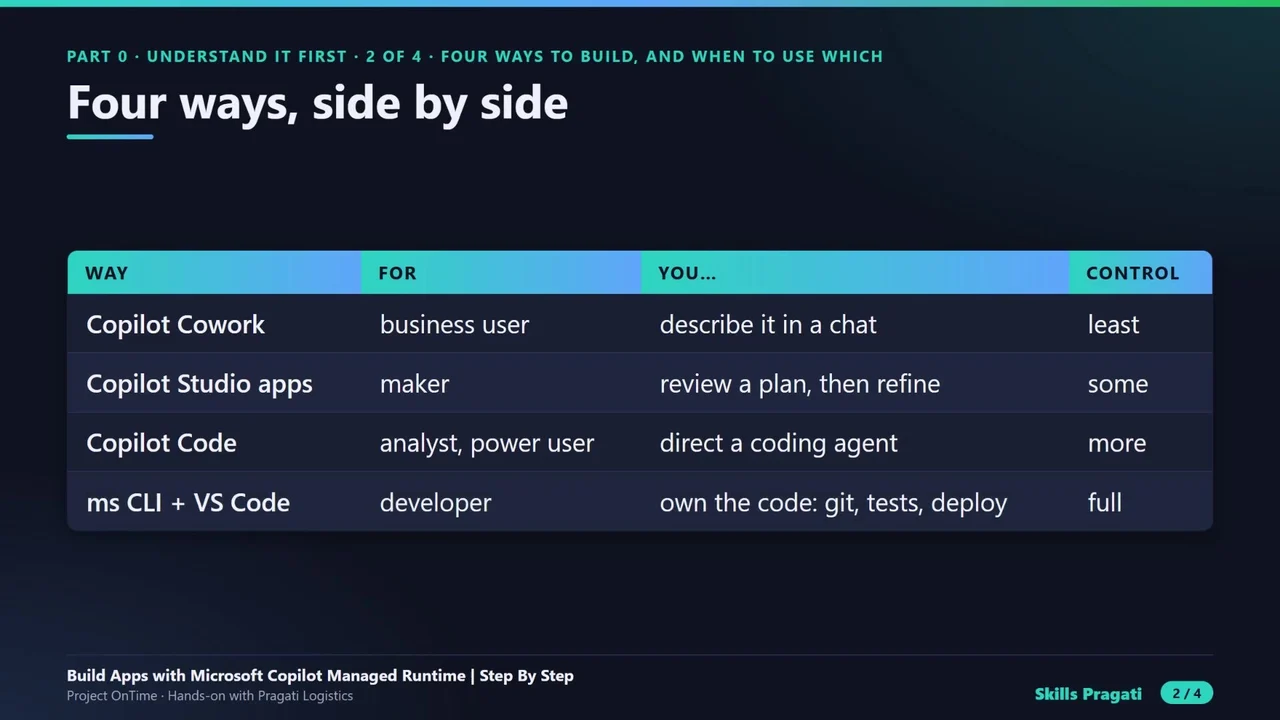
| Way | For | You… | Control |
|---|---|---|---|
| Copilot Cowork | business user | describe it in a chat | least |
| Copilot Studio apps | maker | review a plan, then refine | some |
| Copilot Code | analyst, power user | direct a coding agent | more |
| ms CLI + VS Code | developer | own the code: git, tests, deploy | full |
When to use which
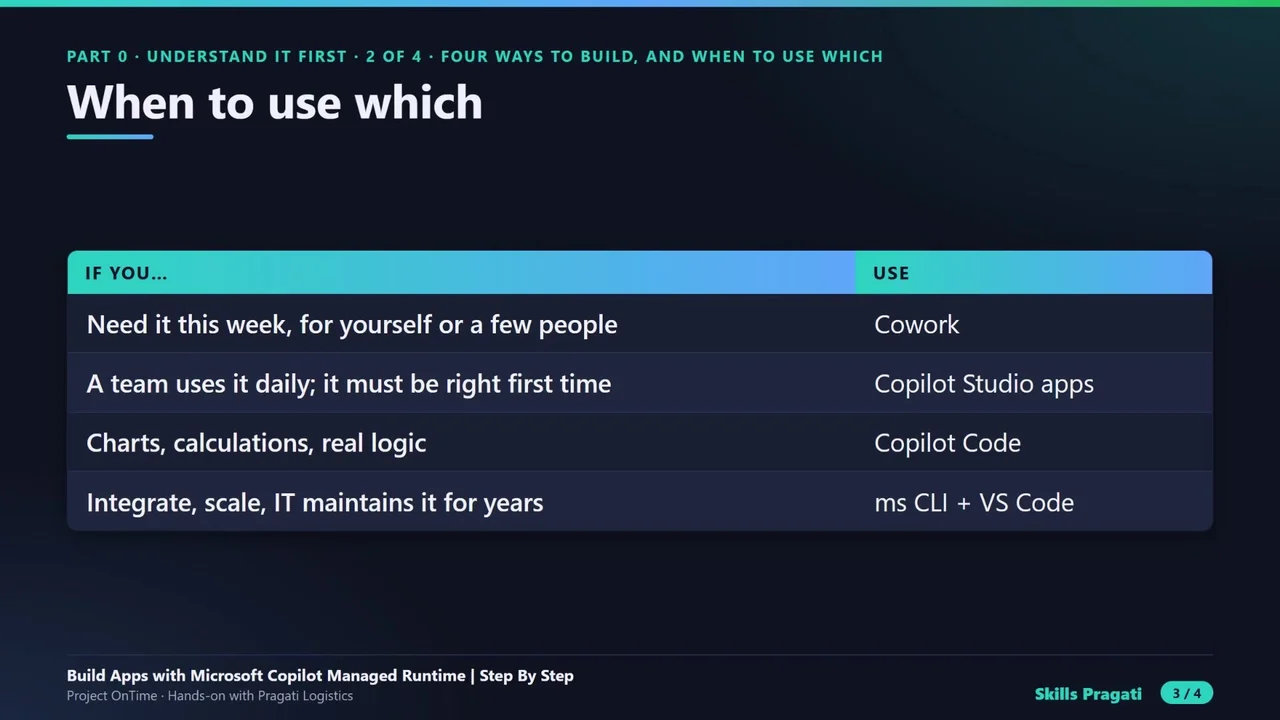
- Need it this week, for yourself or a few people? Cowork.
- A team uses it every day and it must be right first time? Copilot Studio apps.
- Charts, calculations, real business logic? Copilot Code.
- It has to integrate, scale and be maintained by IT for years? The ms command line and VS Code.
What stays the same
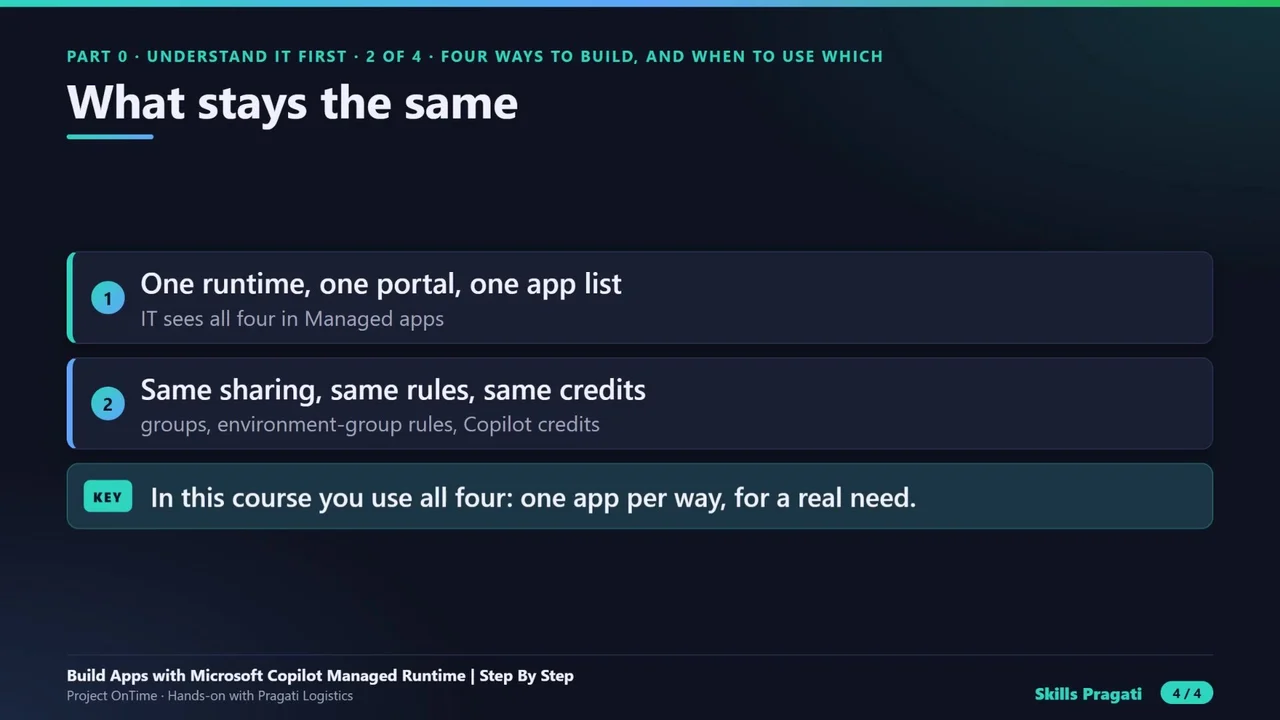
One runtime, one portal, one app list for IT. The same sharing, the same rules, the same Copilot credits. That is what makes it safe to let different people build in different ways.
In the course
All four are used, one app per way, each for a real need at Pragati Logistics: the Delay Tracker with Cowork, Vehicle Inspection with Copilot Studio, the Fleet Dashboard with Copilot Code, and the Dispatch Board in code.
Do it yourself
- The full Build Apps with Microsoft Copilot Managed Runtime Step By Step courseEvery Part, free on YouTube, in order
- Hands-on lab guideThe exact steps, what it costs, how to clean up
- Practice simulationRehearse every click in your browser; the first lab is free
- Mock examFree 10-question sample, then the full timed mock scored by domain
Lab guides, practice and full mock exams come with a subscription. See the plans