

Build Apps with Microsoft Copilot Managed Runtime Step By Step Step by step · Step 12
Copilot Code Builds a Live Dashboard From 4 SharePoint Lists
Ask a coding agent for a live Fleet Dashboard from four SharePoint lists, review what it checked, verify every panel, then share it safely.

Adele runs analytics at Pragati Logistics. The facts she needs live in four lists: shipments, delays, trucks and inspections. But she only joins them up at month end, and by then a bad week has already become a bad month. So she asks Copilot Code, a coding agent that plans, writes real code, builds it and publishes it.
Step 0: Get the environment ready first
Before Adele builds anything, IT prepares her environment: opening Apps → New app in Copilot Studio makes routing create her personal environment; then IT adds Dataverse and attaches it to the pay-as-you-go billing plan. Three makers, three ready environments, one bill, under one budget.
Step 1: Ask like a product owner
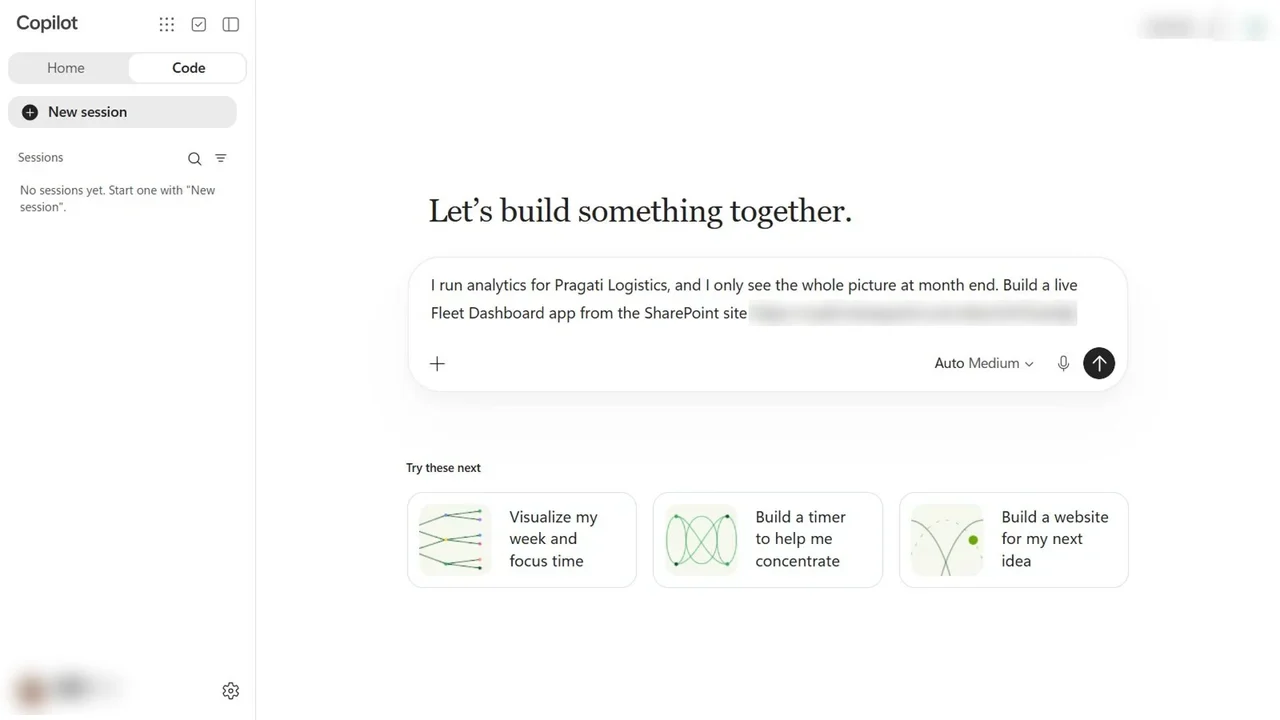
In the Code tab, the way she asks matters: the problem first (she only sees the picture at month end), then where the data lives, the five things she wants to see, and two guard rails: read only, and publish only when it works.
Step 2: Watch the agent work
A coding agent works like a developer: it explores, plans, writes files and runs commands.
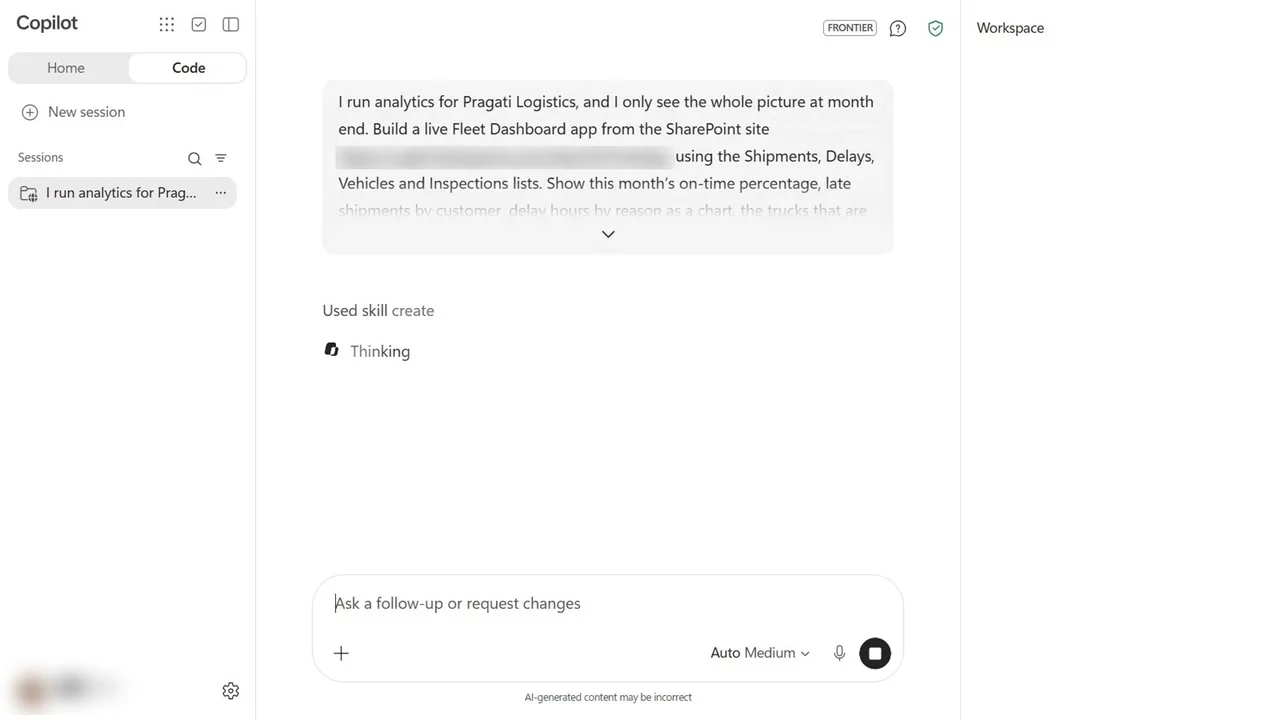
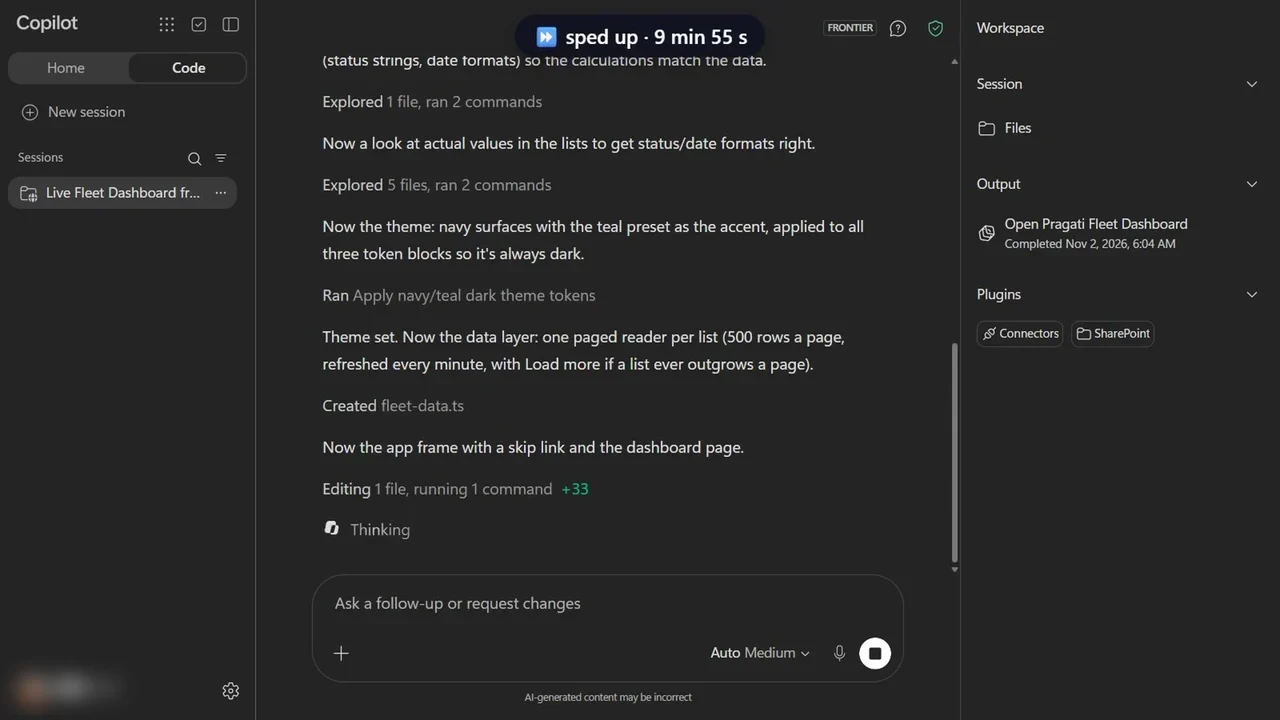
It stops to ask one thing: connect to SharePoint? The app needs that connection to read the lists, with Adele’s own permissions. Then it binds the lists, reads sample rows, and writes the screens. About fifteen minutes later it type-checks, runs the publish checks, and publishes.
Step 3: Read the summary like a reviewer
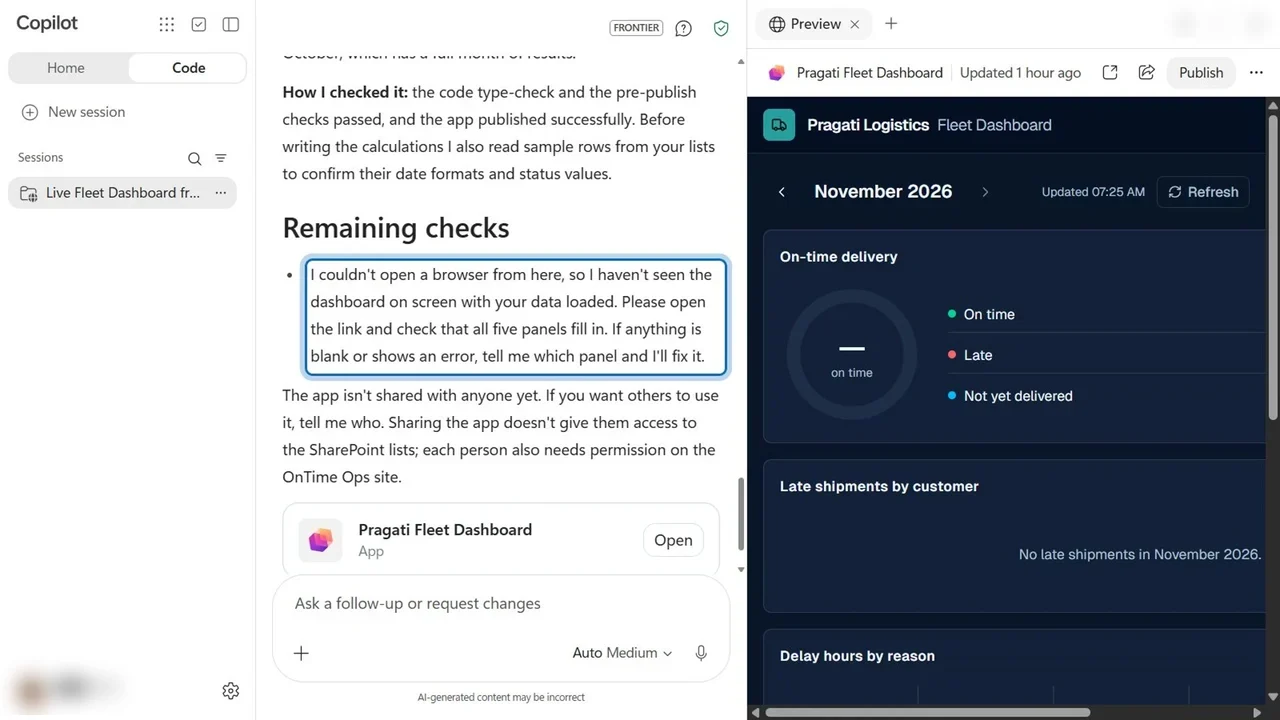
How I checked it: the code type-checks, the publish checks passed, and it read sample rows first to get the dates right. And the honest part, Remaining checks: it could not open a browser, so it has not seen the dashboard with real data, and asks you to check that all five panels fill in.
How you know it worked
Adele opens the app and allows SharePoint access on her behalf. Then check each panel: on-time delivery from the same shipments operations tracks, late shipments by customer, delay hours by reason, the trucks not cleared (including the one that failed inspection this morning), and today’s inspections.
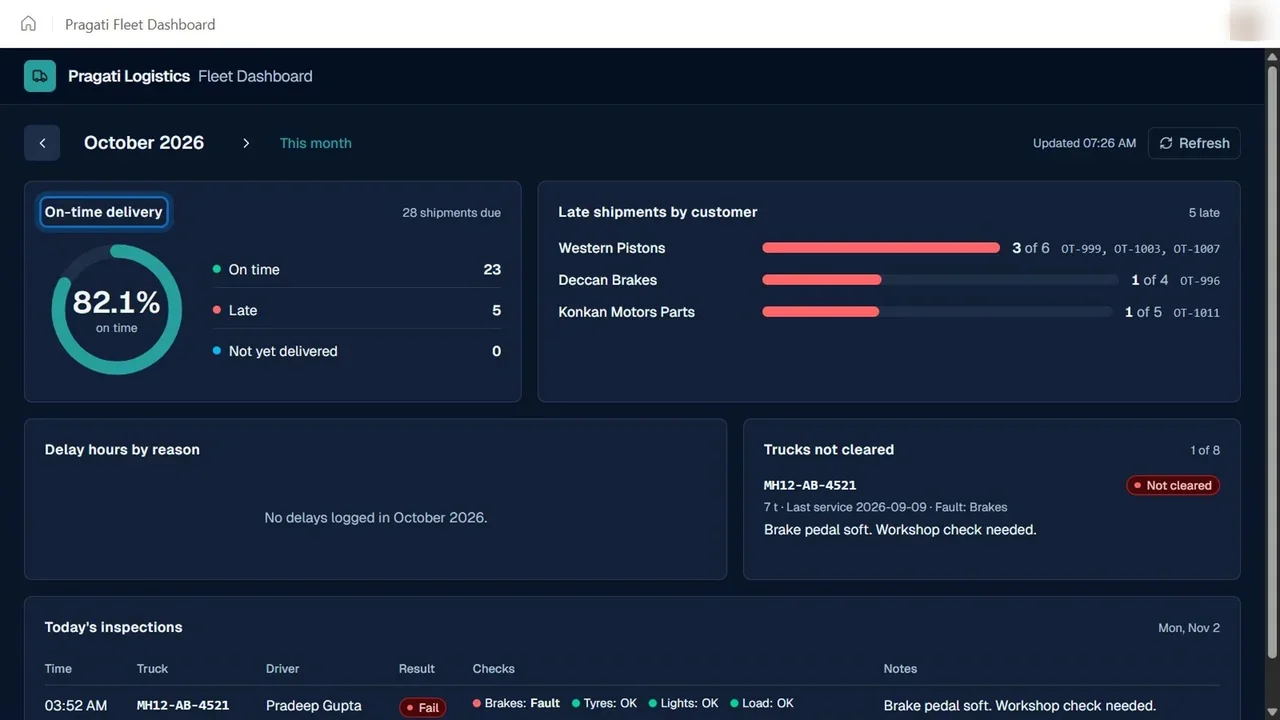
Then Share it with the OnTime Ops group, which already has access to the site, so the dashboard fills in for them too.
IT’s side: the Code settings
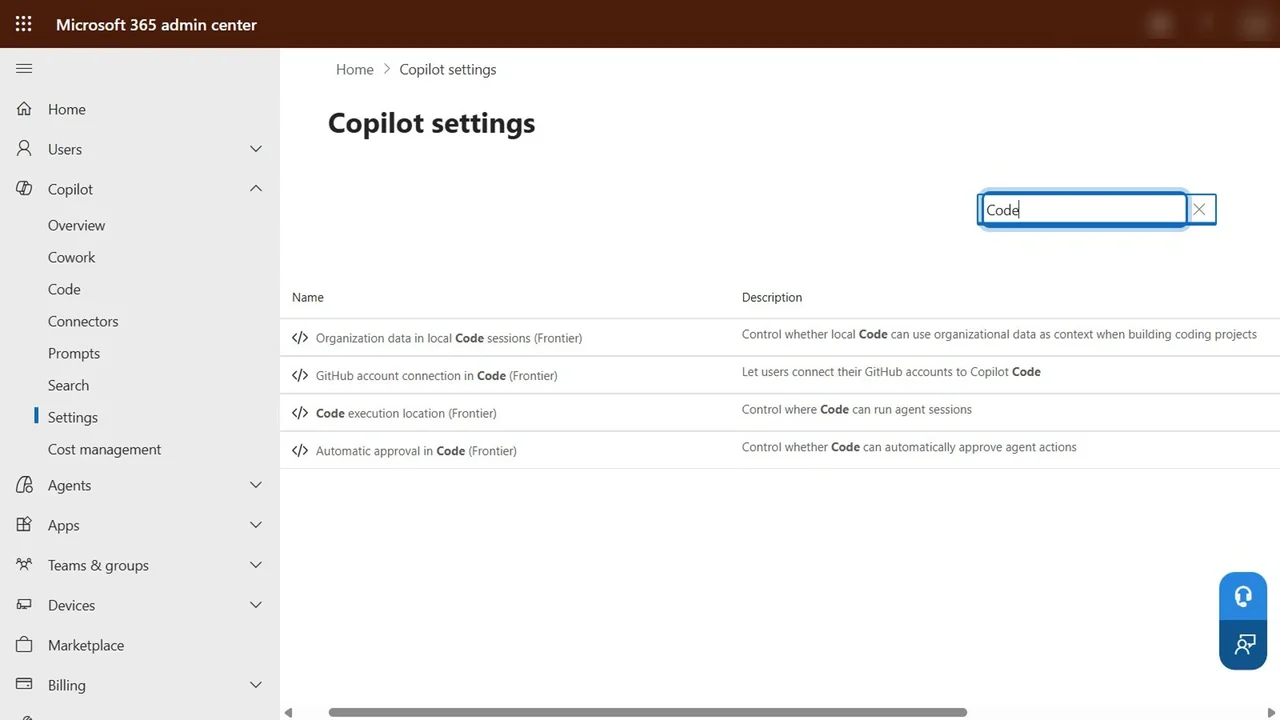
Microsoft 365 admin center → Copilot → Settings, search Code: where its code runs (cloud, people’s own PCs, or both), whether it may use organisation data in local sessions, and whether its actions need approval.
What a tech lead should take away
- Describe the problem, then check what you get. Never ship an agent’s output without verifying it with real data.
- Guard rails in the prompt (read only, publish only when it works) and guard rails in the admin settings.
- Sharing the app is not sharing the data: people still need access to the underlying lists.
Do it yourself
- The full Build Apps with Microsoft Copilot Managed Runtime Step By Step courseEvery Part, free on YouTube, in order
- Hands-on lab guideThe exact steps, what it costs, how to clean up
- Practice simulationRehearse every click in your browser; the first lab is free
- Mock examFree 10-question sample, then the full timed mock scored by domain
Lab guides, practice and full mock exams come with a subscription. See the plans