

AB-650 Step by step · Lab 11
Copilot Readiness Checklist: Fix These 4 Things First
Get a tenant ready before Microsoft 365 Copilot reaches every desk: readiness checks, oversharing reports, restricted sites and Copilot meeting policies.

Copilot does not create new access. It reveals the access you already gave. So before it reaches every desk, an admin checks four things: the tenant, the data, SharePoint, and Copilot in meetings. This is Lab 11 of the AB-650 course at Pragati Industries.
Step 1: Tenant readiness
Microsoft 365 admin center → Copilot → Overview. Copilot analytics show active users, adoption score and assisted hours, all zero until people start. Top actions is the readiness checklist: Copilot hidden in Windows, Copilot Chat not pinned in the apps, mobile usage, intranet websites, and a community for adoption.
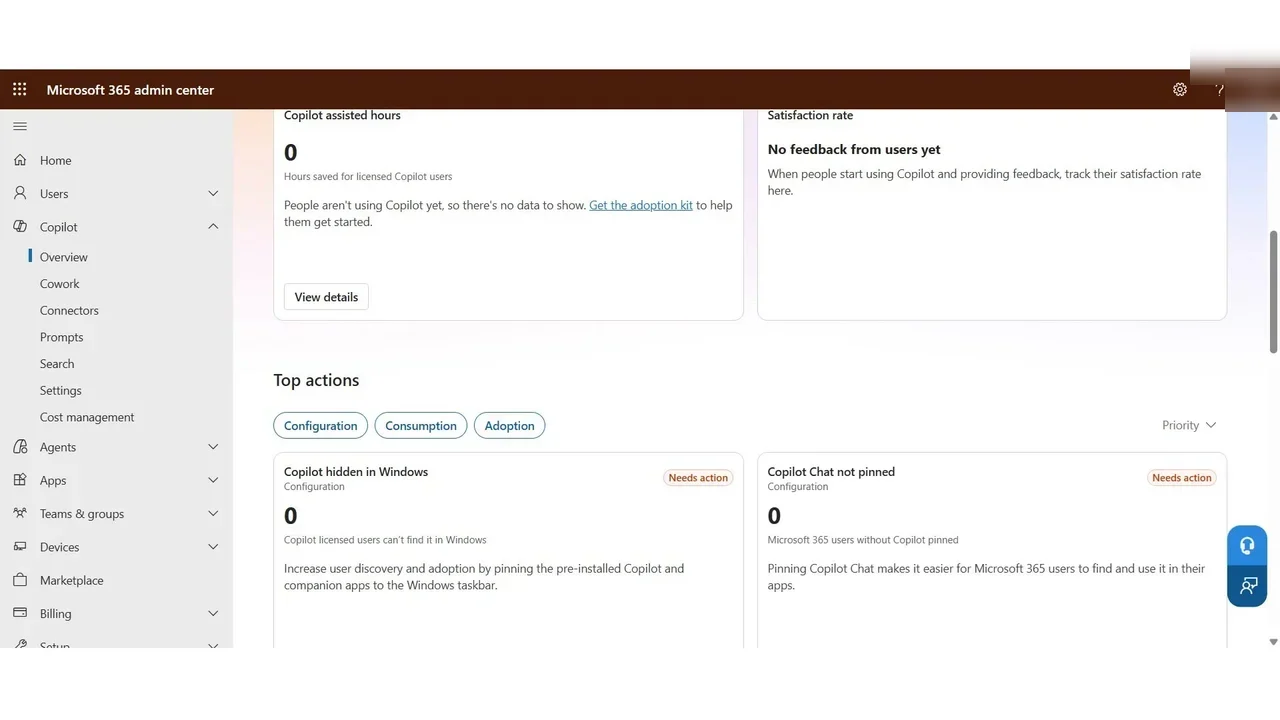
One more item: the Microsoft 365 Apps update channel. Copilot features in Word, Excel and PowerPoint arrive in Current Channel or Monthly Enterprise Channel first.
Step 2: Data readiness
SharePoint admin center → Reports → Data access governance. Snapshot reports cover site permissions across the organisation, permissions for one user, content open to Everyone, and where sensitivity labels are; activity reports cover new sharing links.
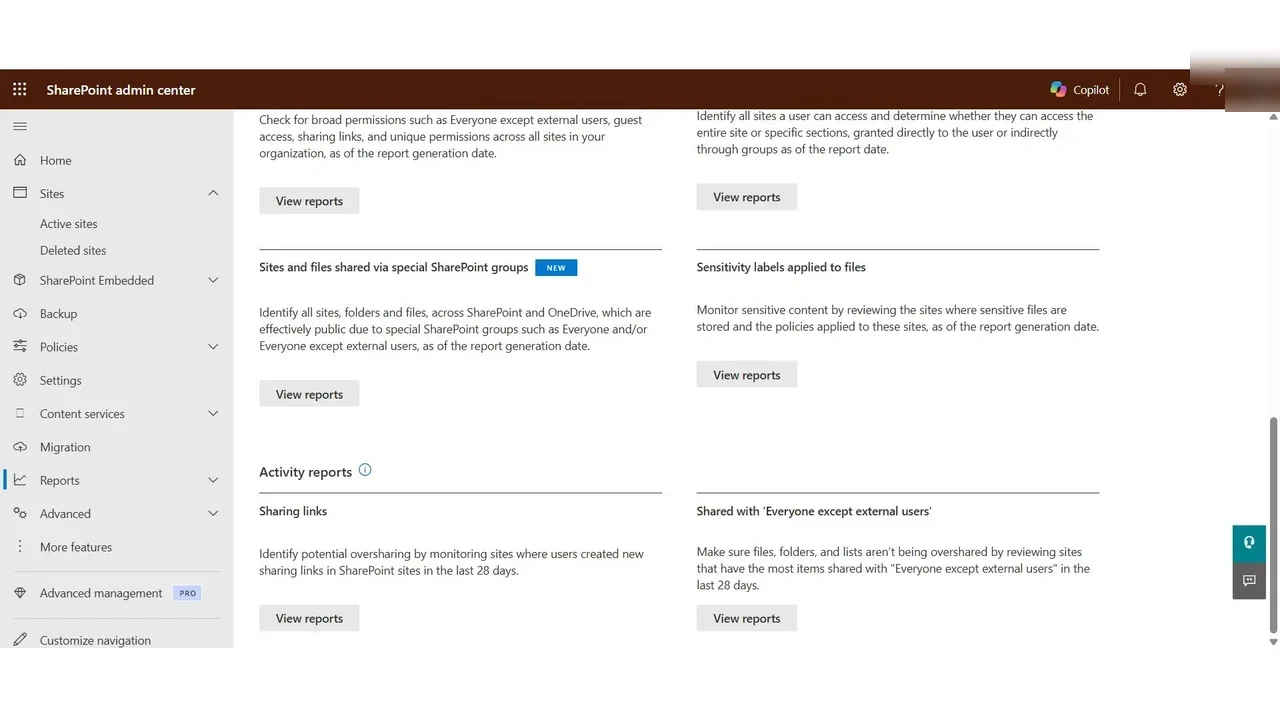
Step 3: Keep sensitive sites out of Copilot
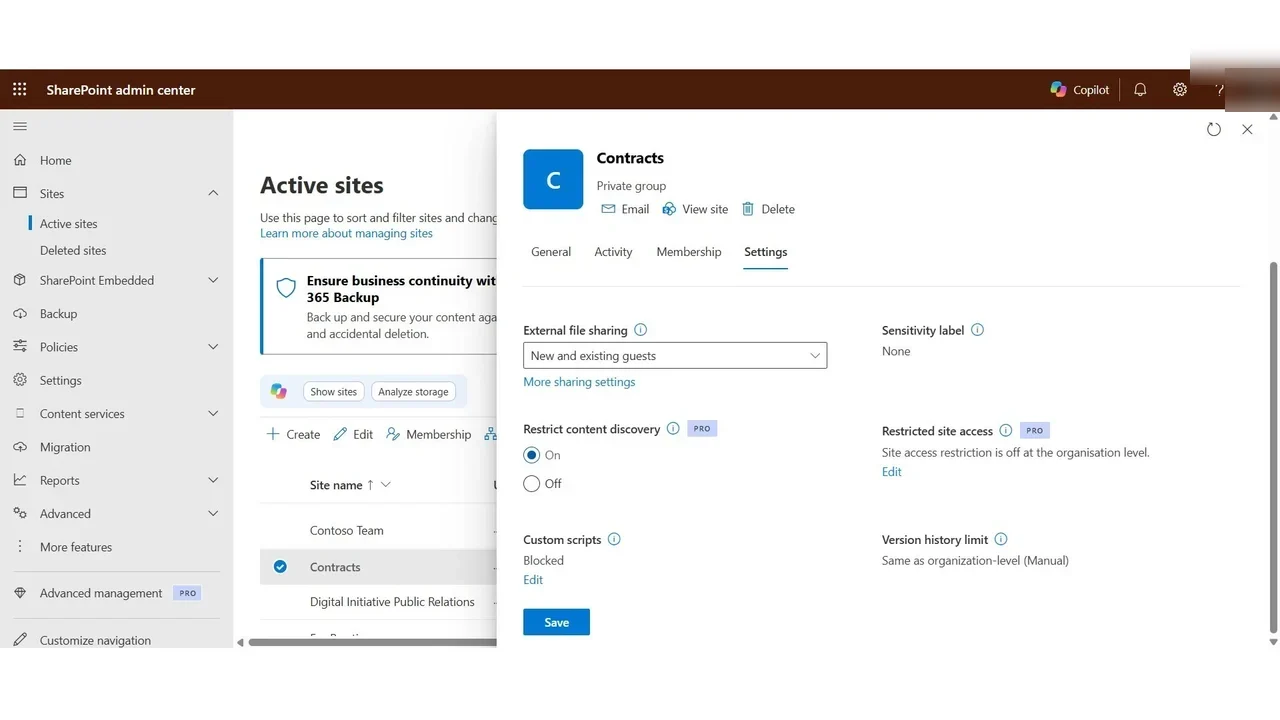
Active sites → Contracts → Settings → Restrict content discovery: On. Members still open the site, but its content no longer appears in Copilot or organisation-wide search for anyone else.
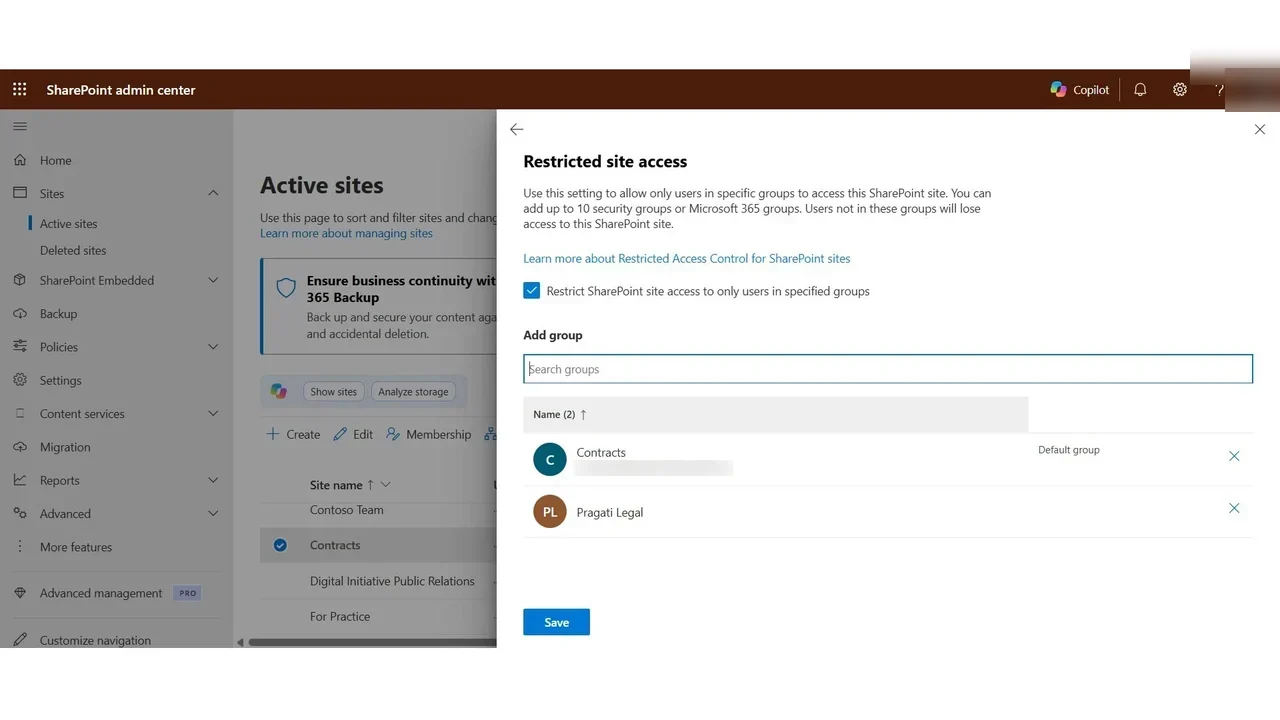
Restricted site access goes further: only chosen groups can open the site at all. Enable the organisation setting first, then on the site add Pragati Legal next to the site’s own group.
Good answers also need organisational knowledge: in Search and intelligence → Answers, an acronym such as PGI = Pragati Industries is what Copilot and search reply when someone asks.
Step 4: Copilot in meetings
Teams admin center → Meetings → Meeting policies. Under Copilot and other AI:
- On: Copilot works during the meeting from speech, and nothing is kept.
- On with saved transcript required: Copilot only works when the meeting is transcribed.
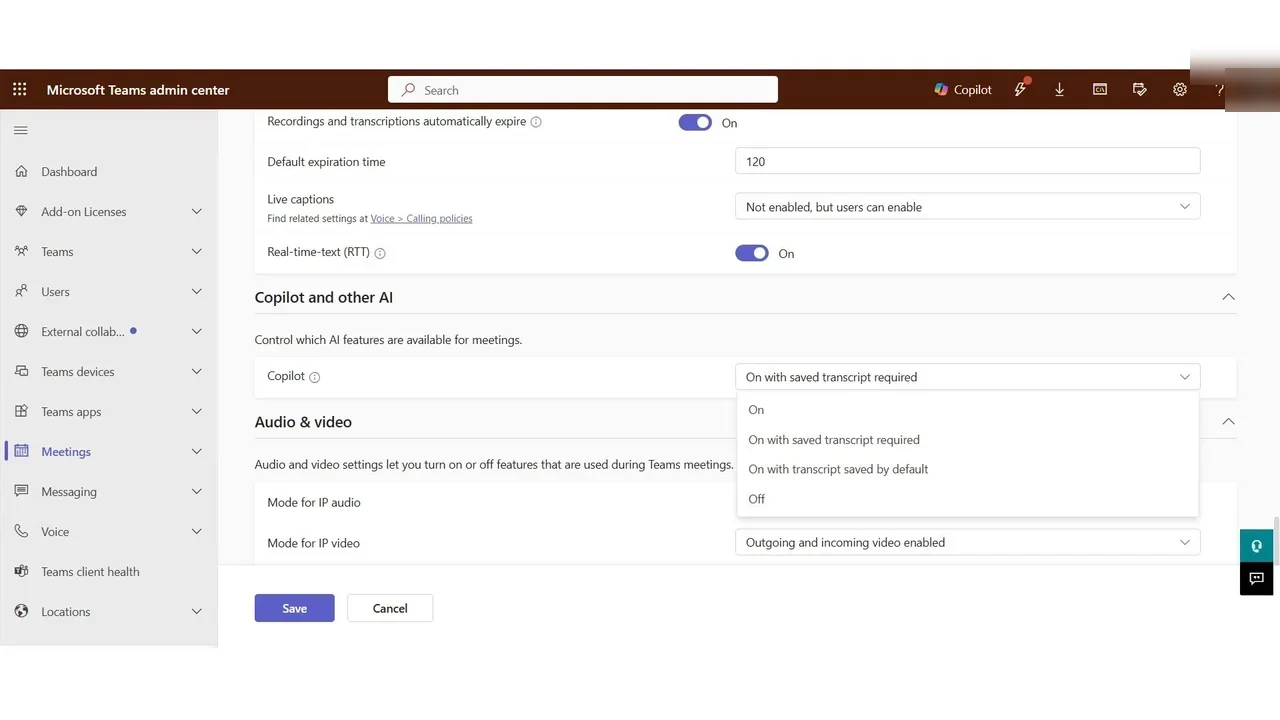
Assign each policy to a group with a rank; a direct assignment to a user wins over both, and group assignments take a few hours to apply.
What a tech lead should take away
- Readiness is mostly data work. Start the oversharing reports weeks before the pilot.
- Hide or lock the few truly sensitive sites first, then let owners clean up the rest.
- Decide the meeting transcript policy with Legal, before people start using Copilot in meetings.
Do it yourself
- The full AB-650 courseEvery Part, free on YouTube, in order
- Hands-on lab guideThe exact steps, what it costs, how to clean up
- Practice simulationRehearse every click in your browser; the first lab is free
- Mock examFree 10-question sample, then the full timed mock scored by domain
Lab guides, practice and full mock exams come with a subscription. See the plans