

SC-500 Step by step · Part 4
Azure Storage and SQL With No Keys and No Passwords
Harden a storage account with keys off, catch a malware upload with Defender for Storage, and run Azure SQL with Entra-only authentication.

Most data leaks in the cloud are not clever attacks. They are a storage account key pasted into code, a container left anonymous, or a database with a SQL login whose password has not changed in years.
Part 4 of the SC-500 course removes all three for Pragati Logistics’ delivery photos and dispatch database.
Step 1: A storage account with secure defaults
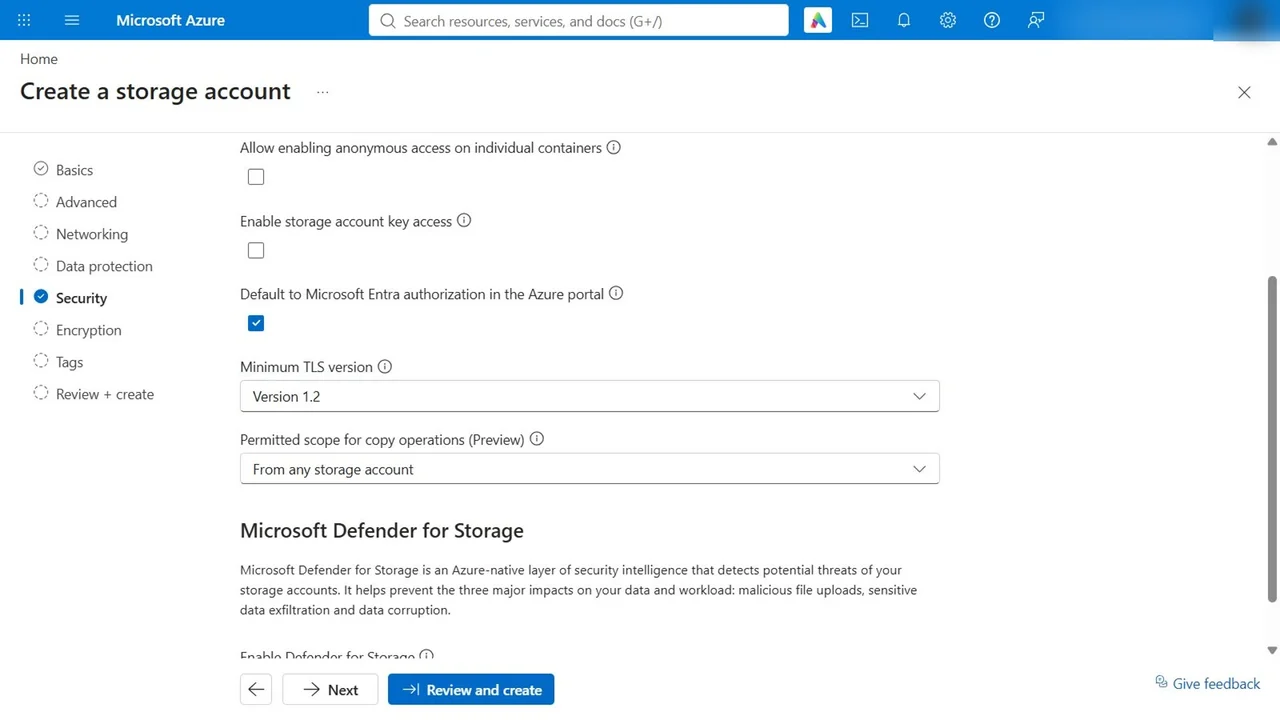
Create a storage account: stsc500pragati, Central India, Blob storage, locally redundant. On the Security tab:
- Require secure transfer: on. Minimum TLS: 1.2.
- Anonymous access on containers: off.
- Storage account key access: off, so only Entra ID works.
- Default to Entra authorization in the portal: on.
Encryption is always on with a Microsoft-managed key; a customer-managed key in Key Vault is the option when you must control rotation and revocation yourself.
Step 2: Prove there is no back door
Create the private container delivery-photos. Even as subscription Owner, the portal says you do not have permissions to list the data: Owner manages the account, reading blobs is a data role, and with keys off there is no shortcut. Assign yourself Storage Blob Data Contributor on this account only, and the container lists, signed in with Entra ID.
Step 3: Scan every upload for malware
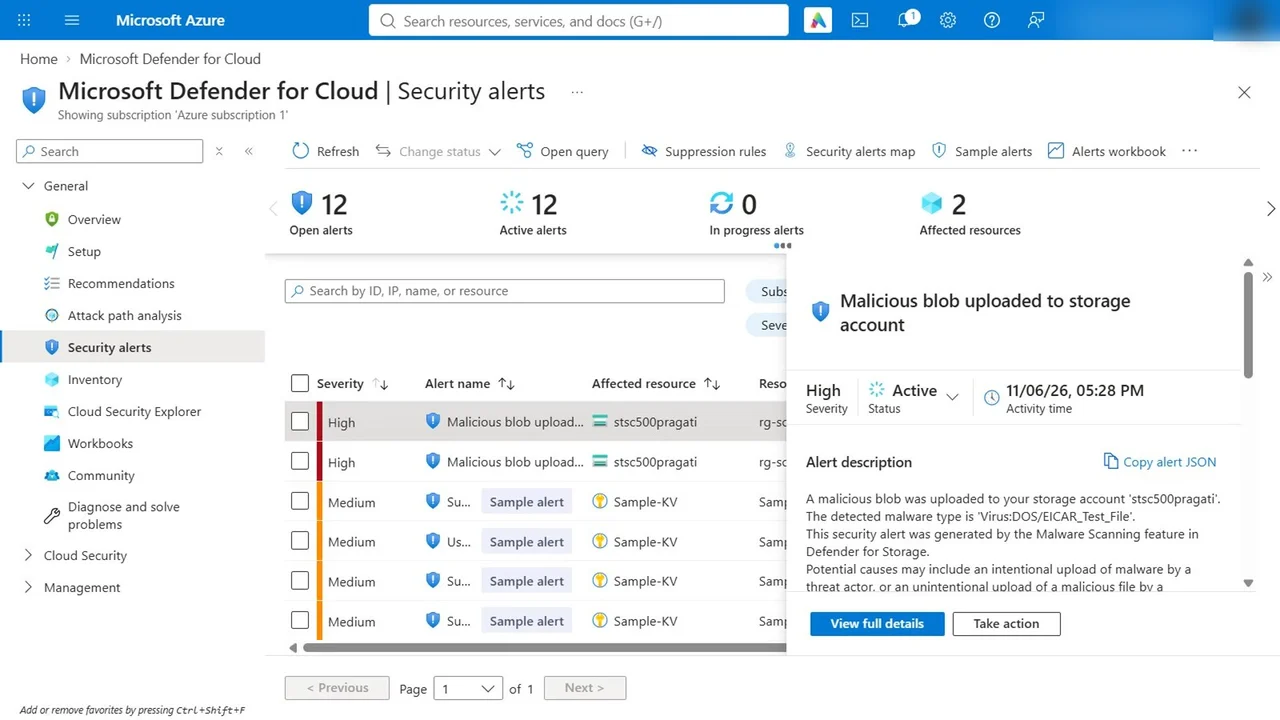
Defender for Cloud, Defender plans, Storage: switch it on, then Settings, malware scanning. Cap scanning at 10 GB per account per month (the smallest cap) and store results as blob index tags.
Test it the safe way: upload the EICAR test file, a harmless text file every antivirus treats as malware.
Step 4: Azure SQL with no SQL logins at all
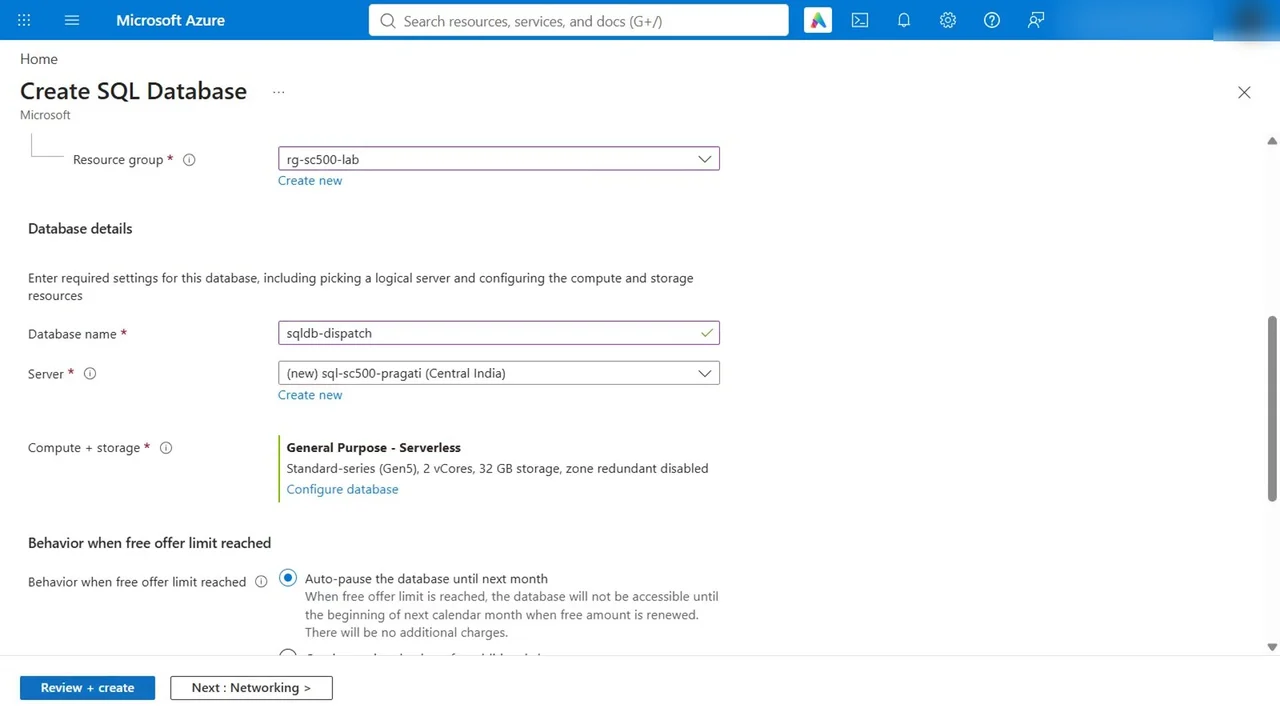
Create a SQL database, applying the free offer (100,000 vCore seconds and 32 GB a month), with auto-pause when the free limit is reached.
- New server sql-sc500-pragati, Microsoft Entra-only authentication: no SQL login and no password exist.
- Networking: no public access for now, minimum TLS 1.2.
- Start the Defender for SQL trial.
Finally, turn on Azure SQL Auditing at the server, sent to a Log Analytics workspace, so every query is searchable with KQL.
How you know it worked
- The container lists only after a data role is assigned; there is no key fallback.
- The EICAR upload raises Malicious blob uploaded to storage account.
- The SQL server has Entra-only authentication and auditing to Log Analytics.
What a tech lead should take away
- Turn shared keys off and enforce it with the built-in policy; rotation still leaves a key that works.
- Malware scanning is cheap with a cap. Set the cap, then forget it.
- No SQL logins means MFA and Conditional Access apply to every database sign-in.
Do it yourself
- The full SC-500 courseEvery Part, free on YouTube, in order
- Hands-on lab guideThe exact steps, what it costs, how to clean up
- Practice simulationRehearse every click in your browser; the first lab is free
- Mock examFree 10-question sample, then the full timed mock scored by domain
Lab guides, practice and full mock exams come with a subscription. See the plans