

SC-500 Step by step · Part 1
Azure Admin Rights for 4 Hours, With Approval and a Passkey
Set up a budget guardrail, PIM for an Azure role with manager approval, and a Conditional Access policy that demands phishing-resistant MFA for Azure.

The fastest way to lose an Azure subscription is a standing Owner or Contributor account with a weak password. Attackers do not need to break Azure; they borrow an admin’s sign-in and use the rights that account already has, all day, every day.
Part 1 of the SC-500 course fixes that for Pragati Logistics before a single workload is built: a cost guardrail, admin rights that exist only when needed, and sign-in that cannot be phished.
Step 1: A resource group with a budget
Every lab lives in one resource group, rg-sc500-lab in Central India. The group itself is free. Under Cost Management, Budgets, add sc500-lab-budget: monthly, ₹3,500, with alerts on actual cost at 37%, 80% and 100%, e-mailed to the course owner.
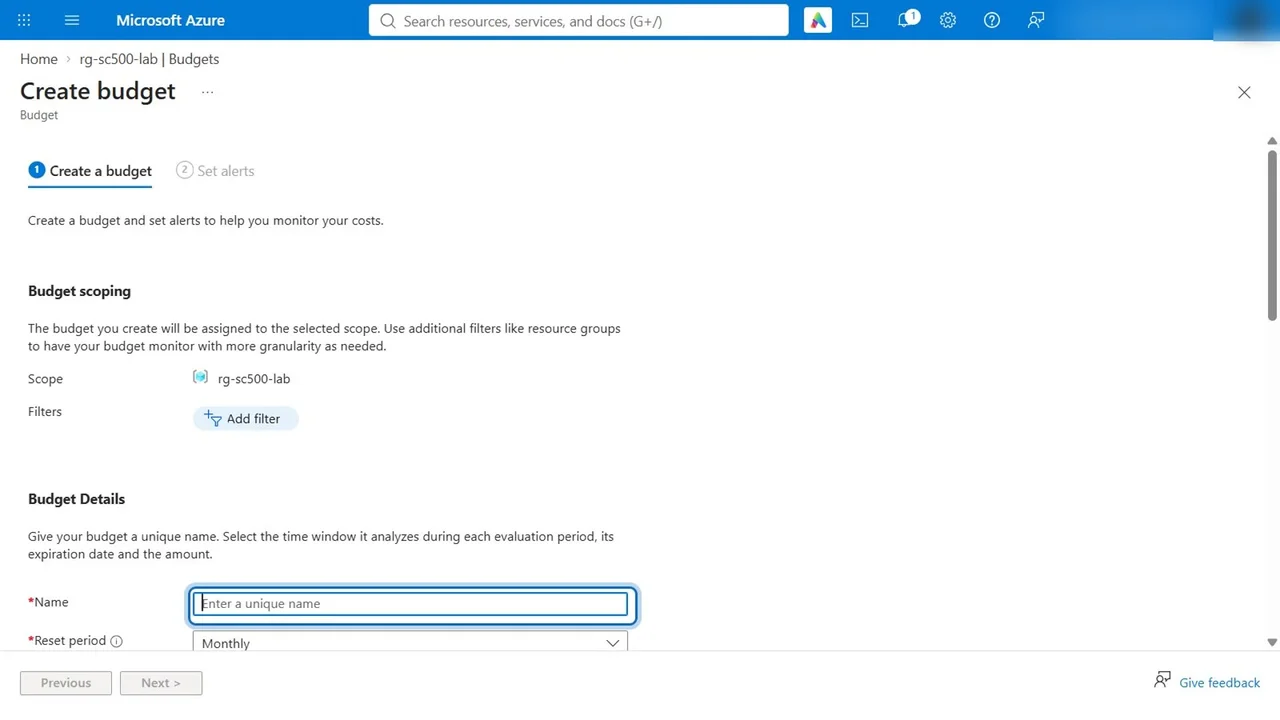
One resource group and one budget means one place to watch cost, and one delete at the end.
Step 2: Make Contributor eligible, not permanent
In Privileged Identity Management, Azure resources, pick the subscription and the lab resource group, then Manage resource.
- Settings, Contributor, Edit: activation maximum 4 hours, require Azure MFA and a justification, and require approval, with the operations manager as approver.
- Roles, Contributor, Add assignments: the developer, assignment type eligible, with an end date. Never permanent.
Now the developer holds no rights at all until they ask.
Step 3: Activate, approve, and watch it expire
The developer opens My roles, Azure resources, chooses Contributor on the lab, sets the duration and a reason (“deploy the dispatch app to the lab”) and selects Activate. The status is pending approval; nothing is granted yet.
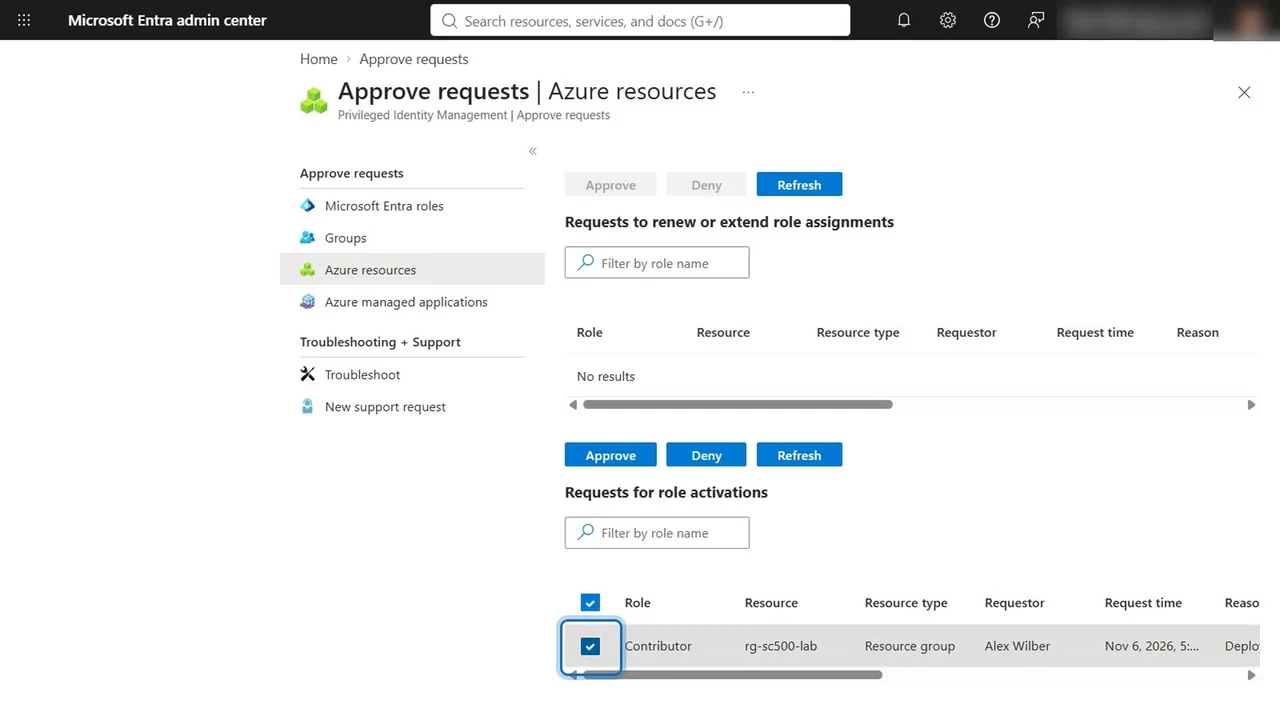
The manager approves with a reason for the record. The developer’s active assignment ends four hours later by itself, so nobody has to remember to remove it.
Step 4: Demand phishing-resistant MFA for Azure
In Conditional Access, a new policy, SC500 - Azure management needs phishing-resistant MFA:
- Users: all users (in production, exclude your two break-glass accounts).
- Target resources: Azure Resource Manager, the API behind the portal, CLI and PowerShell.
- Grant: require authentication strength: phishing-resistant MFA.
- Enable policy: report-only, so it is logged at every sign-in but blocks nobody yet.
Then test it with What If: user, resource Azure Resource Manager, Windows, browser.
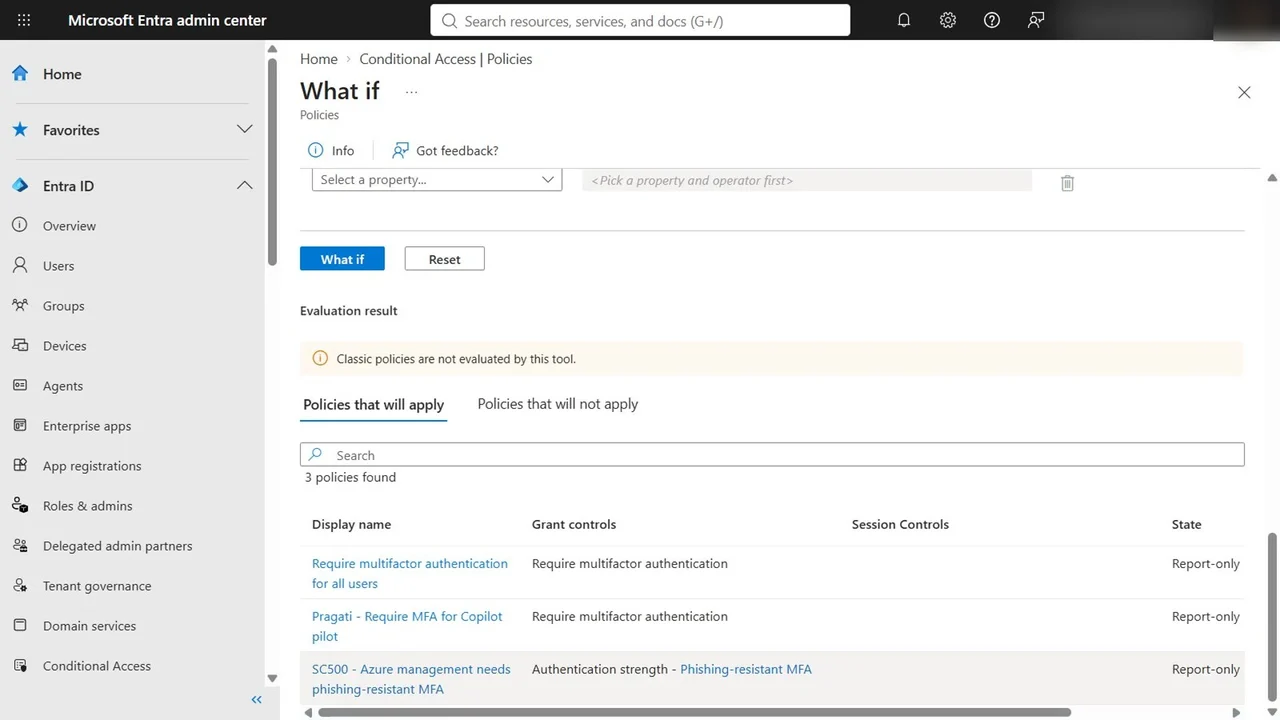
How you know it worked
- The developer is listed under eligible assignments, with no active rights until an approved activation.
- The activation ends after four hours without anyone touching it.
- What If shows the phishing-resistant MFA policy applying to Azure management sign-ins.
What a tech lead should take away
- Standing admin rights are the risk, not the role. Eligible plus approval removes most of it.
- “Require MFA” is not enough for admins. It accepts SMS. Authentication strength is the control the exam and attackers care about.
- Switch policies on in report-only first, and prove them with What If.
Do it yourself
- The full SC-500 courseEvery Part, free on YouTube, in order
- Hands-on lab guideThe exact steps, what it costs, how to clean up
- Practice simulationRehearse every click in your browser; the first lab is free
- Mock examFree 10-question sample, then the full timed mock scored by domain
Lab guides, practice and full mock exams come with a subscription. See the plans