

Microsoft Entra Suite Masterclass Step by step · Step 8
Right Password, Wrong Person: Risk-Based Conditional Access
Sign-in risk vs user risk, and two Entra templates: require MFA for risky sign-ins and a secure password change for risky users.

What if someone has the right password, but it isn’t them? A stolen password looks like a normal sign-in, unless something scores the risk. That is ID Protection, and the response is Conditional Access. This is Step 8 of the Entra Suite Masterclass.
Two kinds of risk
- Sign-in risk: this one sign-in looks wrong. An anonymous IP address, impossible travel, an unfamiliar place.
- User risk: the account itself is probably compromised, for example its password turned up in a leak.
Microsoft scores the risk. You decide the response:
- A risky sign-in, medium or high: require MFA. Prove it’s really you.
- A high-risk user: require a secure password change.
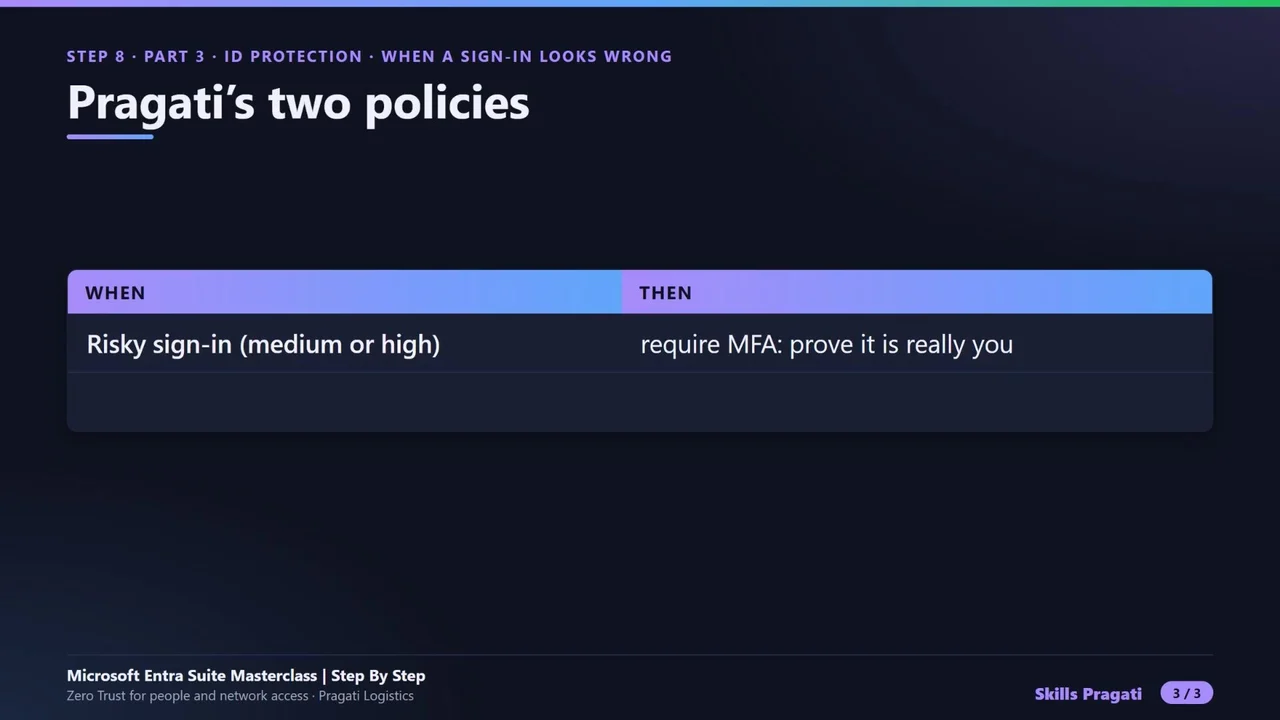
Step 1: MFA for risky sign-ins
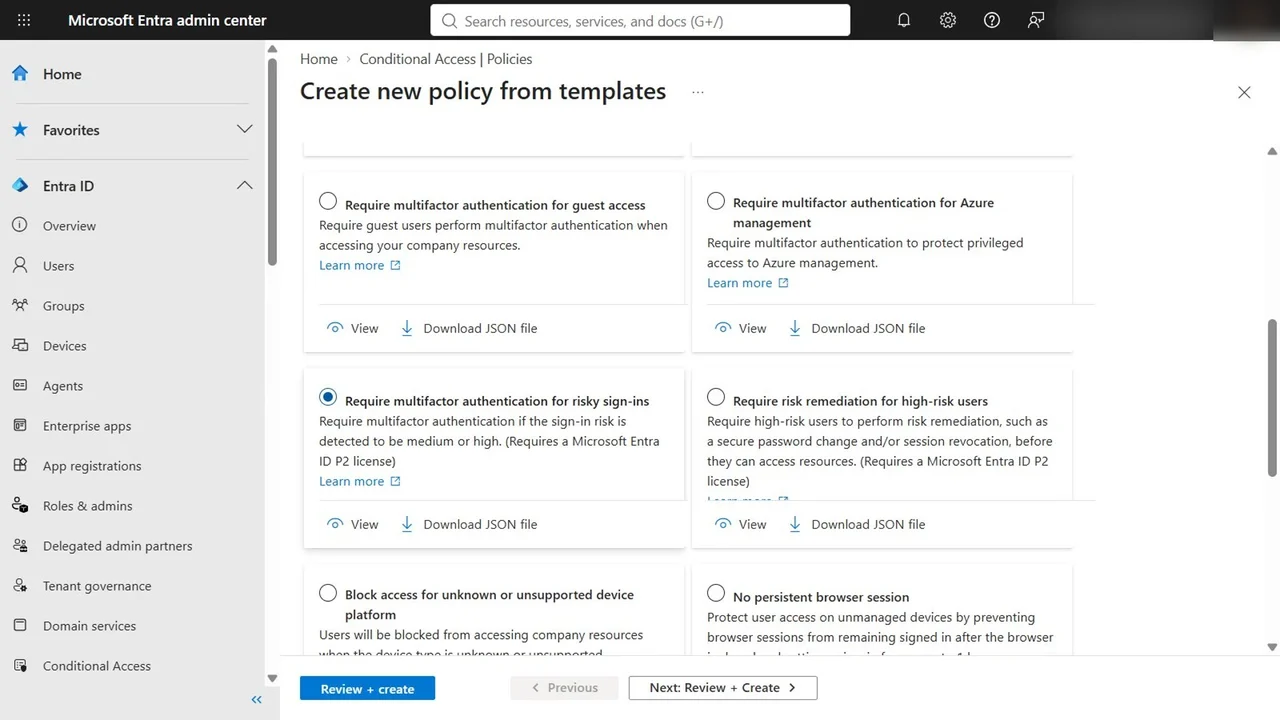
Conditional Access → Policies → New policy from template, the Zero Trust set. Two templates need Entra ID P2, which the suite includes. First: Require multifactor authentication for risky sign-ins.
Review it: all users except you, the admin who creates it, so you cannot lock yourself out. Sign-in risk: high and medium. Grant: require MFA. State: report-only.
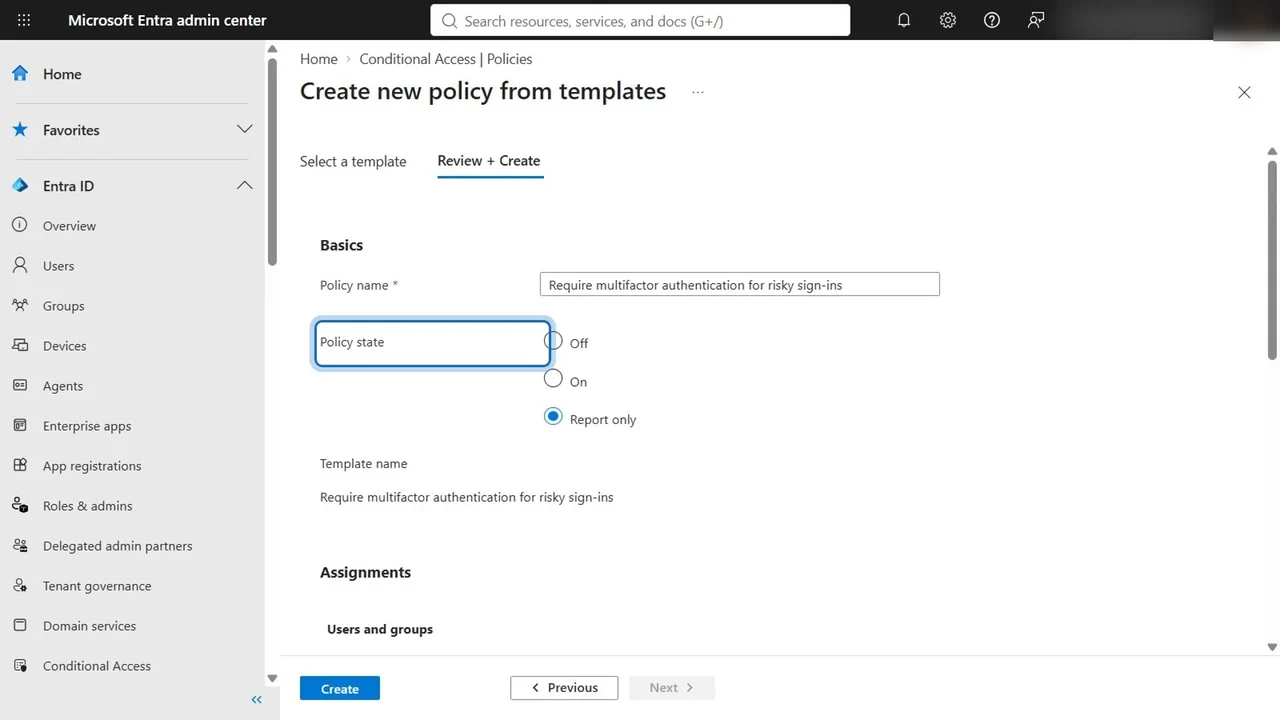
Why report-only? This tenant keeps security defaults on, and the two cannot enforce side by side.
Step 2: Remediation for high-risk users
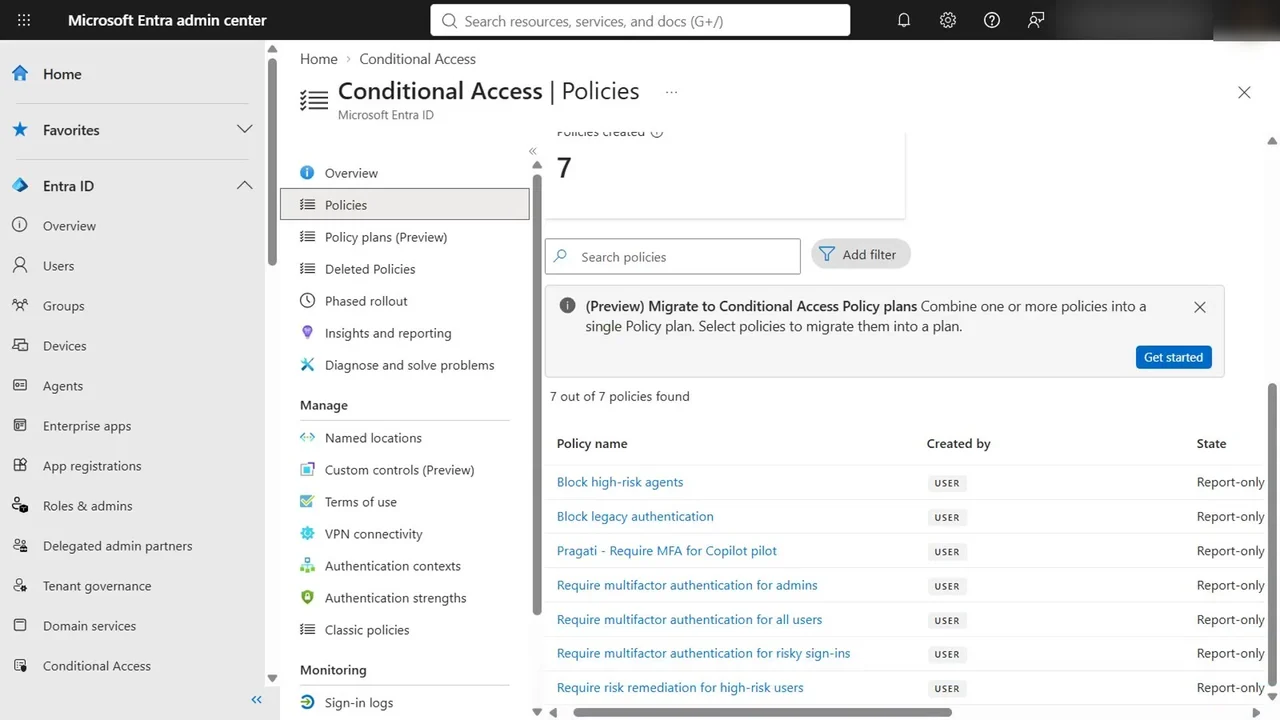
Second template: Require risk remediation for high-risk users. For an account that is probably compromised, fix it first, with a secure password change and its sessions revoked. Report-only, and Create.
Where risk shows up
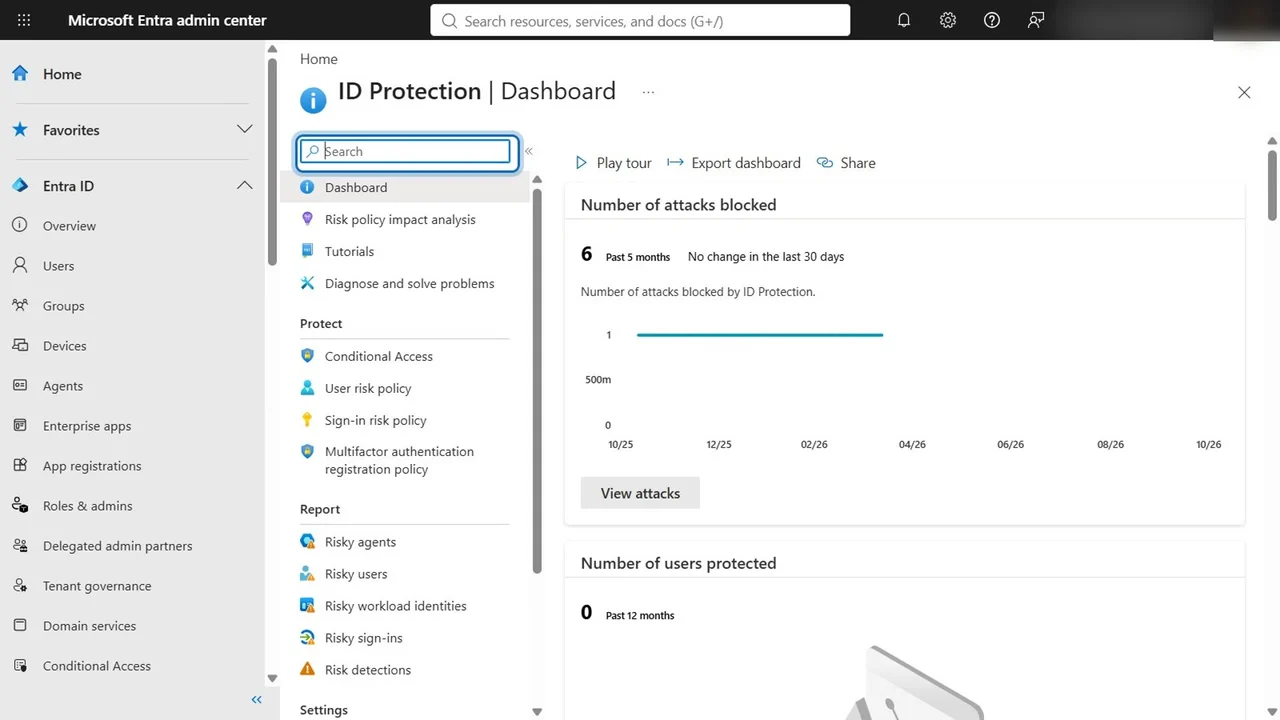
ID Protection → Dashboard: attacks blocked (six in the last three months in this tenant, from Microsoft’s own protections, before any policy of ours), and the reports: risky users, risky sign-ins and risk detections.
How you know it worked
In the next step of the course we cause a real risky sign-in, and find it in Risk detections, with the sign-in log showing what the report-only policies would have done.
What a tech lead should take away
- Risk policies need P2, and they are the cheapest strong protection against stolen passwords.
- Remediate, don’t just block: a secure password change plus revoked sessions fixes a compromised account.
- Report-only first, then switch on once the sign-in log matches what you expect.
Do it yourself
- The full Microsoft Entra Suite Masterclass courseEvery Part, free on YouTube, in order
- Hands-on lab guideThe exact steps, what it costs, how to clean up
- Practice simulationRehearse every click in your browser; the first lab is free
- Mock examFree 10-question sample, then the full timed mock scored by domain
Lab guides, practice and full mock exams come with a subscription. See the plans