

AB-410 Step by step · Lab 12
Power Automate Approvals for High-Value Claims
A Dataverse-triggered flow with a trigger filter, an approval that waits for the manager, and a condition that updates the claim either way.

At Pragati General Insurance, any claim above one lakh rupees needs the claims manager’s approval. Today that happens by e-mail, and approvals get lost. A cloud flow can send the request, wait for the answer, and write the result back on the claim.
This is Lab 12 of the AB-410 course.
The building blocks
- A condition: is the amount above the threshold?
- A switch: one path per value.
- Loops: apply to each, or do until a state is reached.
- Approvals: start, and wait for the answer.
Step 1: Trigger only on the claims that matter
In Power Automate, inside the solution: New → Automation → Cloud flow → Automated. Name it High-value claim approval, with the trigger When a row is added, modified or deleted (Microsoft Dataverse).
Change type Added, table Claims, scope Organization (every claim, whoever creates it).
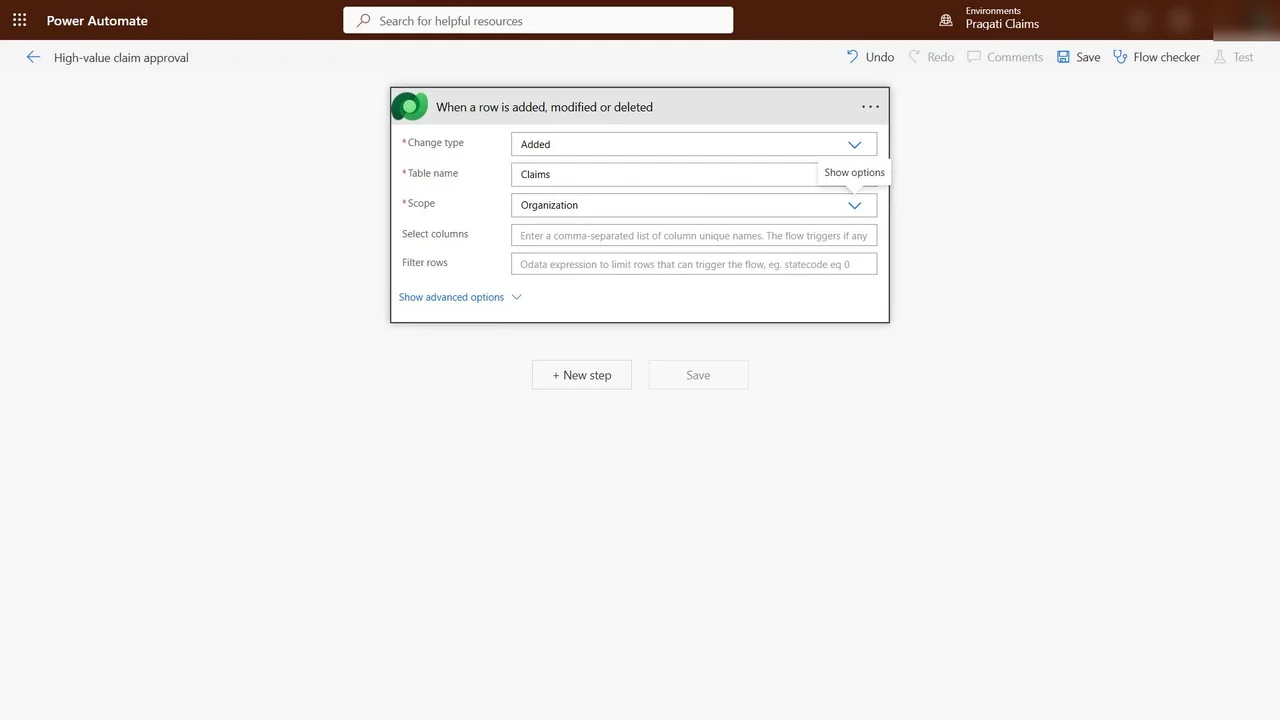
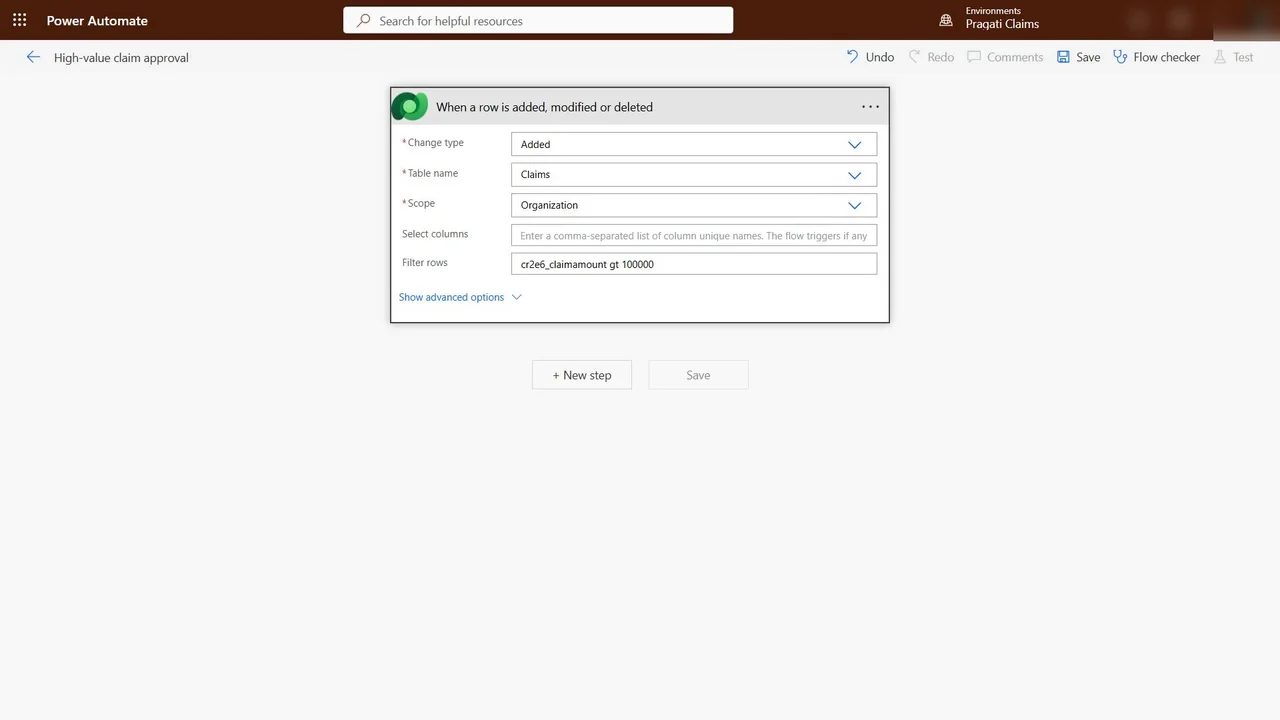
Filter rows: cr2e6_claimamount gt 100000. The threshold sits in the trigger, so small claims never start a run at all.
Step 2: Ask the manager, and wait
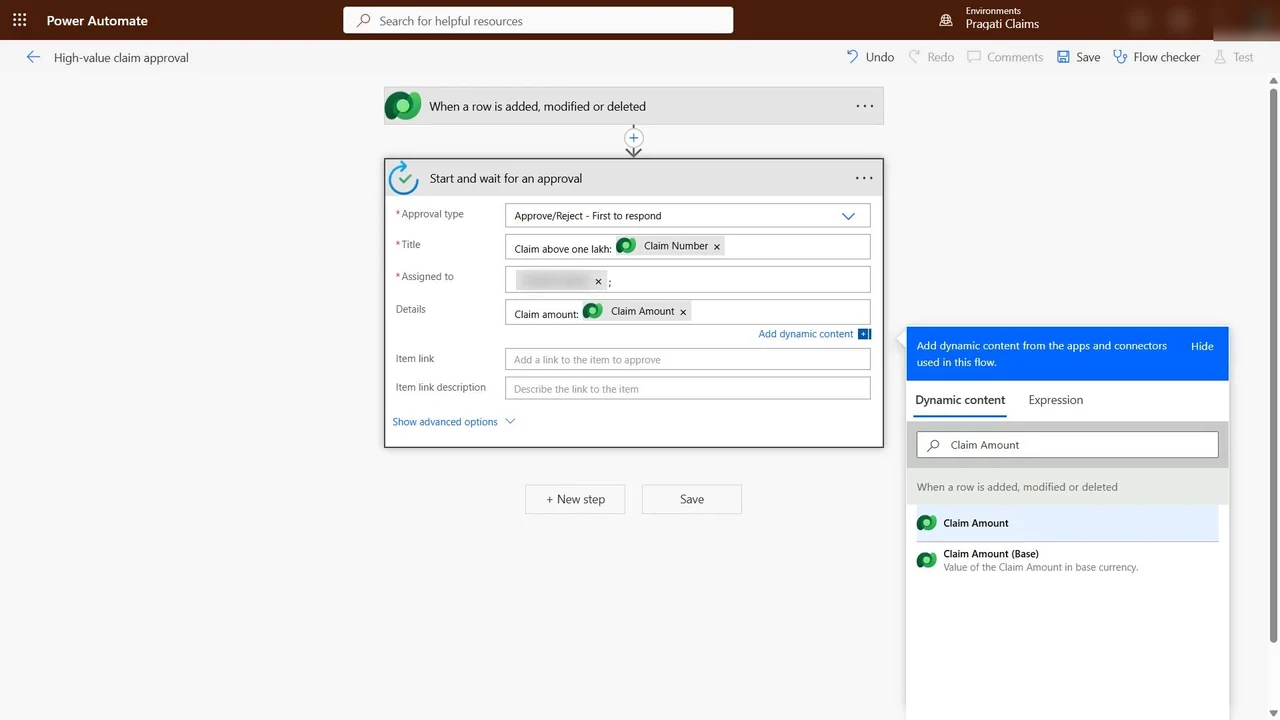
New step → Start and wait for an approval, type Approve/Reject – First to respond. Title: Claim above one lakh and the claim number. Assigned to: the claims manager. Details: the claim amount.
Step 3: Act on the answer, either way
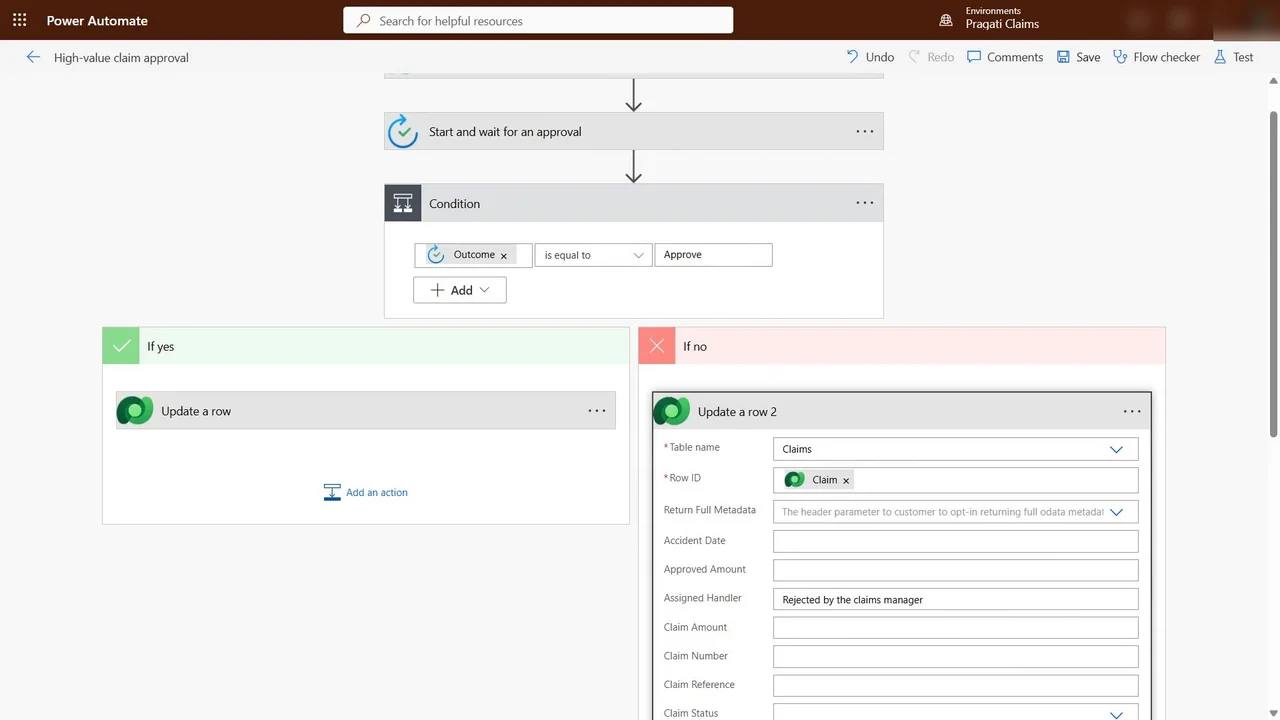
A Condition: Outcome is equal to Approve.
- If yes: Update a row in Claims, row ID from the trigger, Assigned Handler Approved by the claims manager.
- If no: update the same row with Rejected by the claims manager, so the desk sees it at once.
How you know it worked
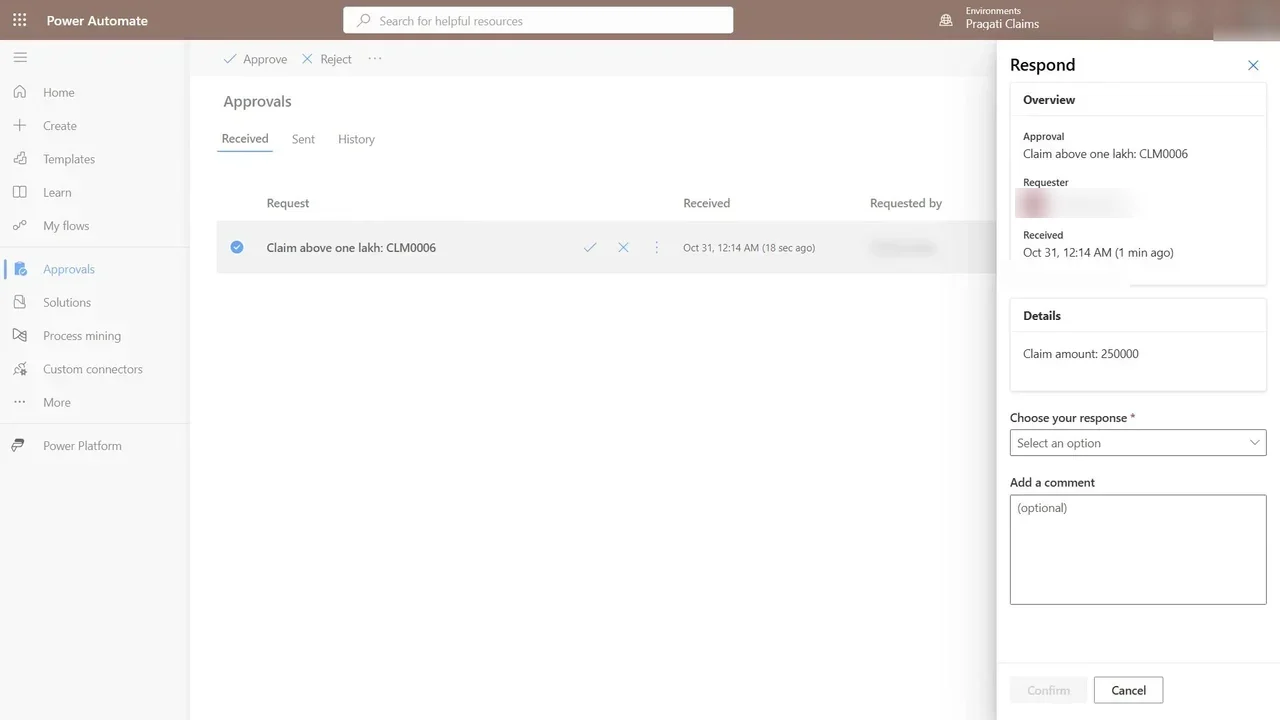
Test it like a surveyor: in Field Survey create claim CLM0006 for ₹2,50,000. The manager gets the request by e-mail, in Teams, and in Power Automate → Approvals → Received, and approves it.
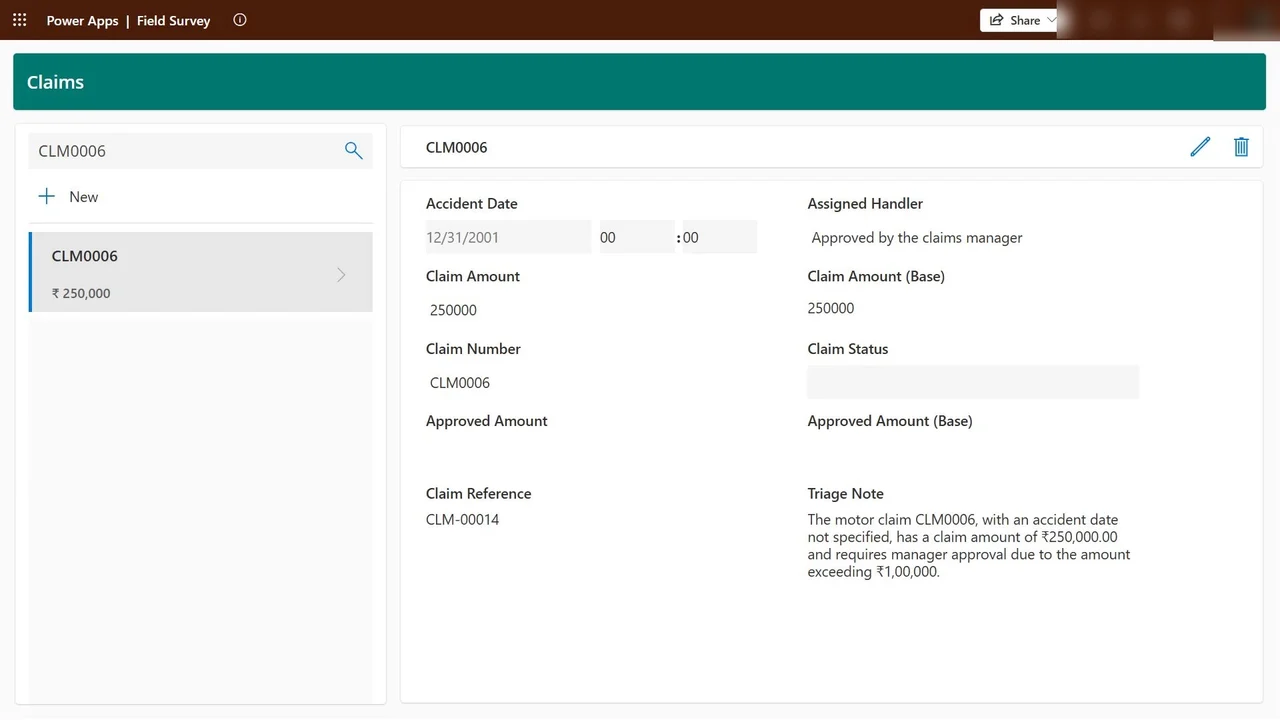
Back in Field Survey, the claim’s handler now reads Approved by the claims manager, written by the flow the moment the manager said yes.
What a tech lead should take away
- Put thresholds in trigger filters where you can: fewer runs, lower cost, cleaner history.
- Always handle the “no” branch. A rejected request that changes nothing is invisible to the people waiting on it.
- Approvals are auditable: the request, the responder and the time are kept in the approval history.
Do it yourself
- The full AB-410 courseEvery Part, free on YouTube, in order
- Hands-on lab guideThe exact steps, what it costs, how to clean up
- Practice simulationRehearse every click in your browser; the first lab is free
- Mock examFree 10-question sample, then the full timed mock scored by domain
Lab guides, practice and full mock exams come with a subscription. See the plans