

SC-300 Step by step · Part 15
Admin Rights for 4 Hours Only: Set Up PIM With Approval
Make an admin role eligible, activated for four hours with MFA and a reason, approved by a manager, and removed automatically. Step by step.

Alex covers the IT help desk on Fridays. On those days he needs Helpdesk Administrator. The rest of the week he should not have it, because a standing admin role is exactly what an attacker hopes to find on a stolen account.
Privileged Identity Management (PIM) solves this: the role is eligible, Alex activates it when he needs it, a manager approves, and it switches itself off. This is how we set it up in Part 15 of the SC-300 course.
Eligible vs active
- Eligible: he can activate the role when needed, for a set time.
- Active: he has it now. It can end on a date, or never.
Role settings control activation (maximum duration, MFA, justification, ticket number, approval), assignment (whether permanent is allowed and when eligibility expires) and notifications.
For Global Administrator and Privileged Role Administrator, always require approval.
Step 1: Set the rules for the role
- ID Governance → Privileged Identity Management → Microsoft Entra roles → Roles, and open Helpdesk Administrator.
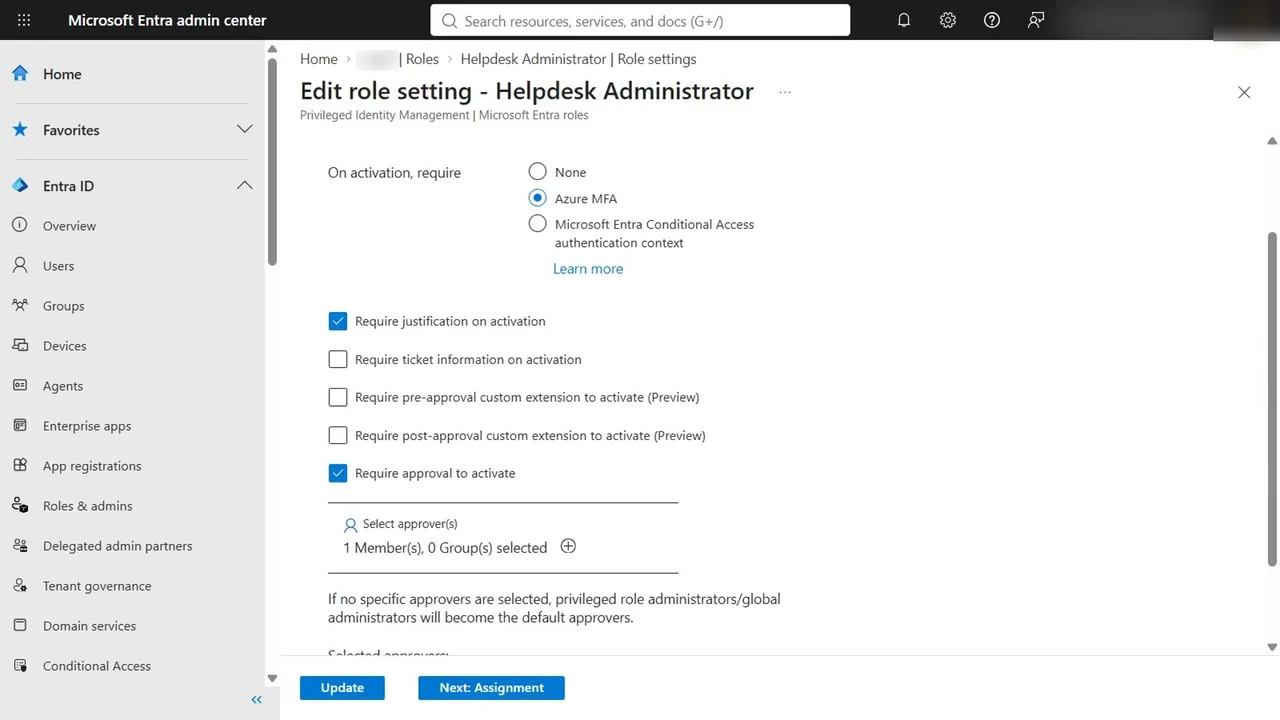
- Role settings → Edit. Activation maximum duration: 4 hours, one shift. On activation, require Azure MFA. Keep justification on.
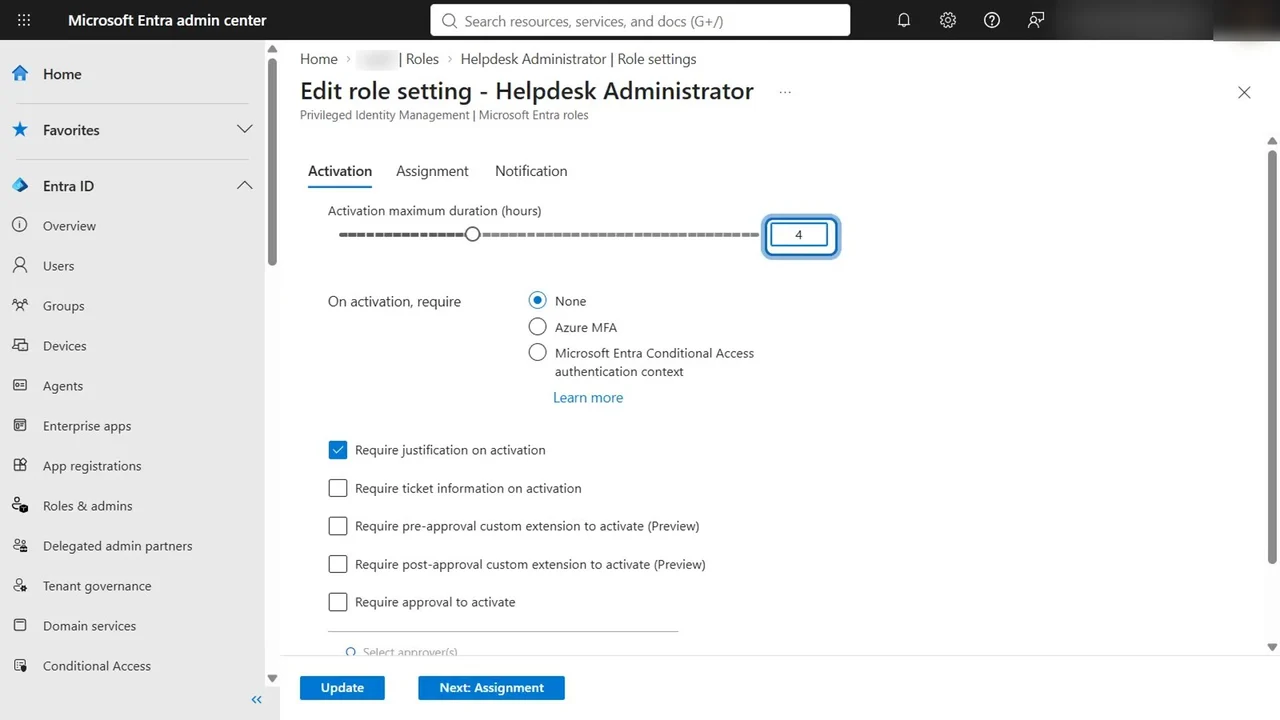
- Require approval to activate: yes, and select the approver: Megan Bowen, the operations manager. Update.
Step 2: Make Alex eligible, not active
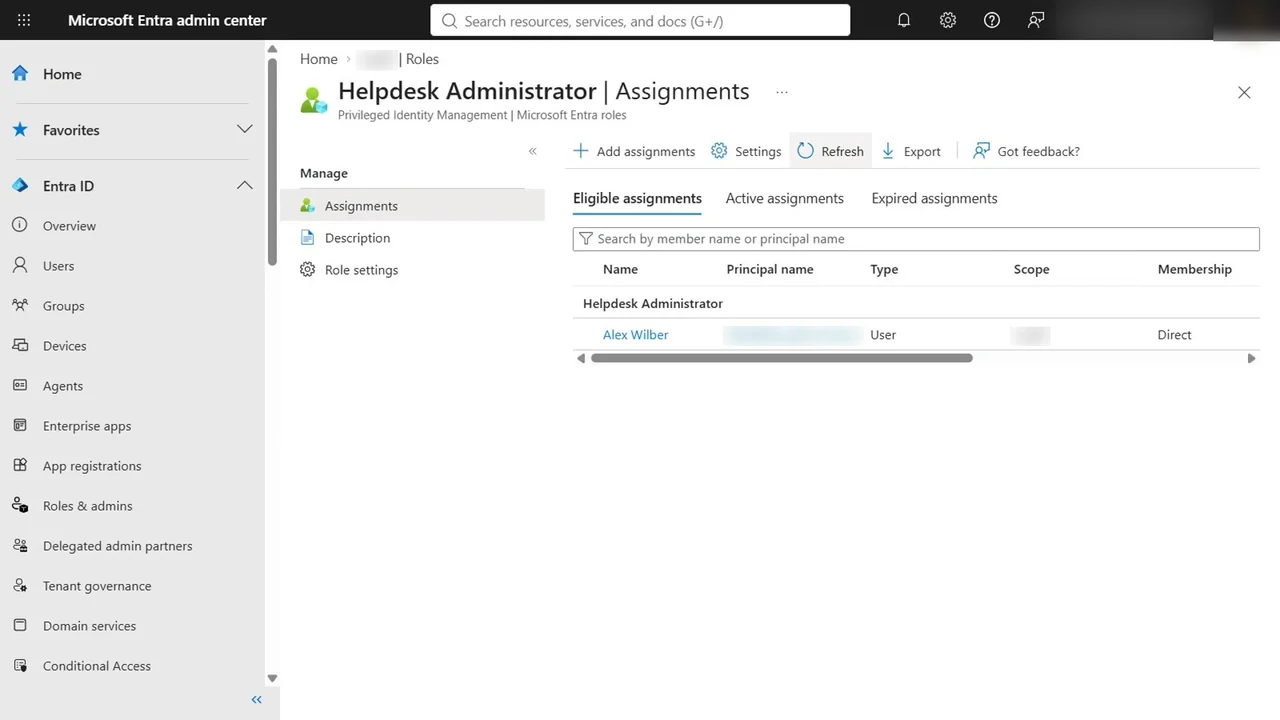
Add assignments, member Alex Wilber, assignment type eligible. Not permanently eligible: it ends, and someone must renew it.
Step 3: Friday: request, approve, use
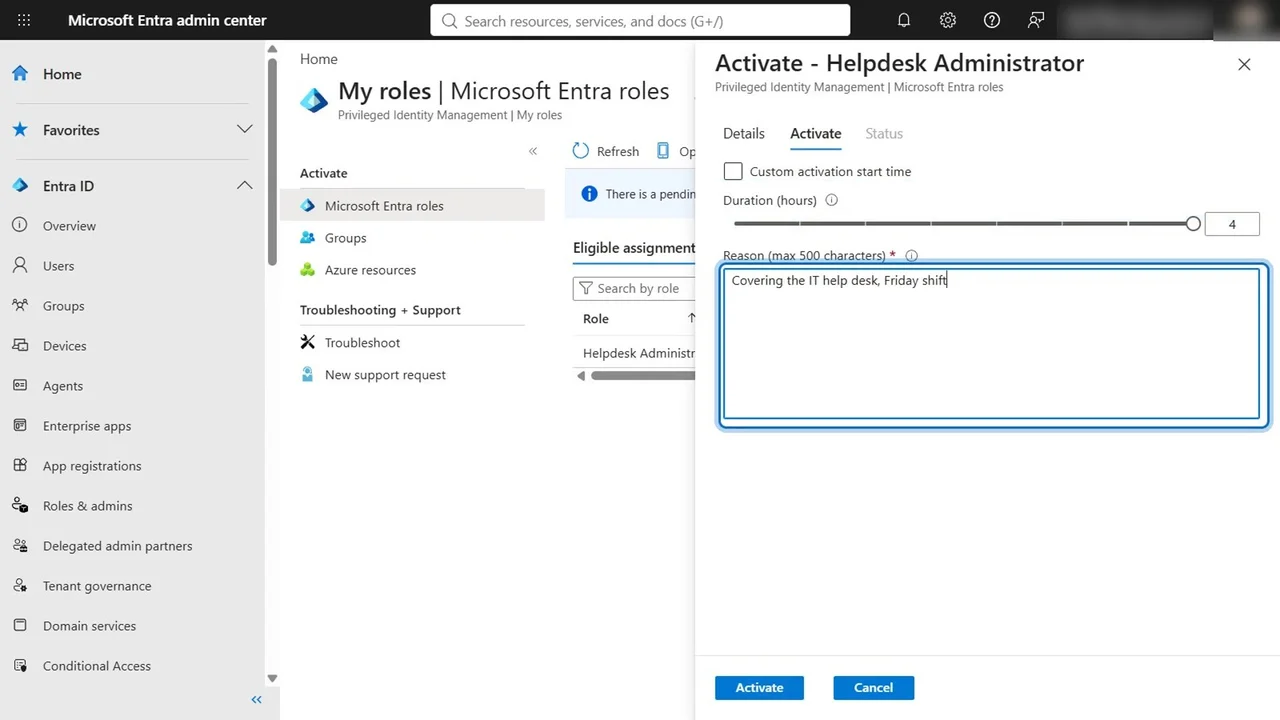
Alex opens PIM → My roles, finds the eligible role and selects Activate. Duration: four hours. Reason: covering the IT help desk, Friday shift.
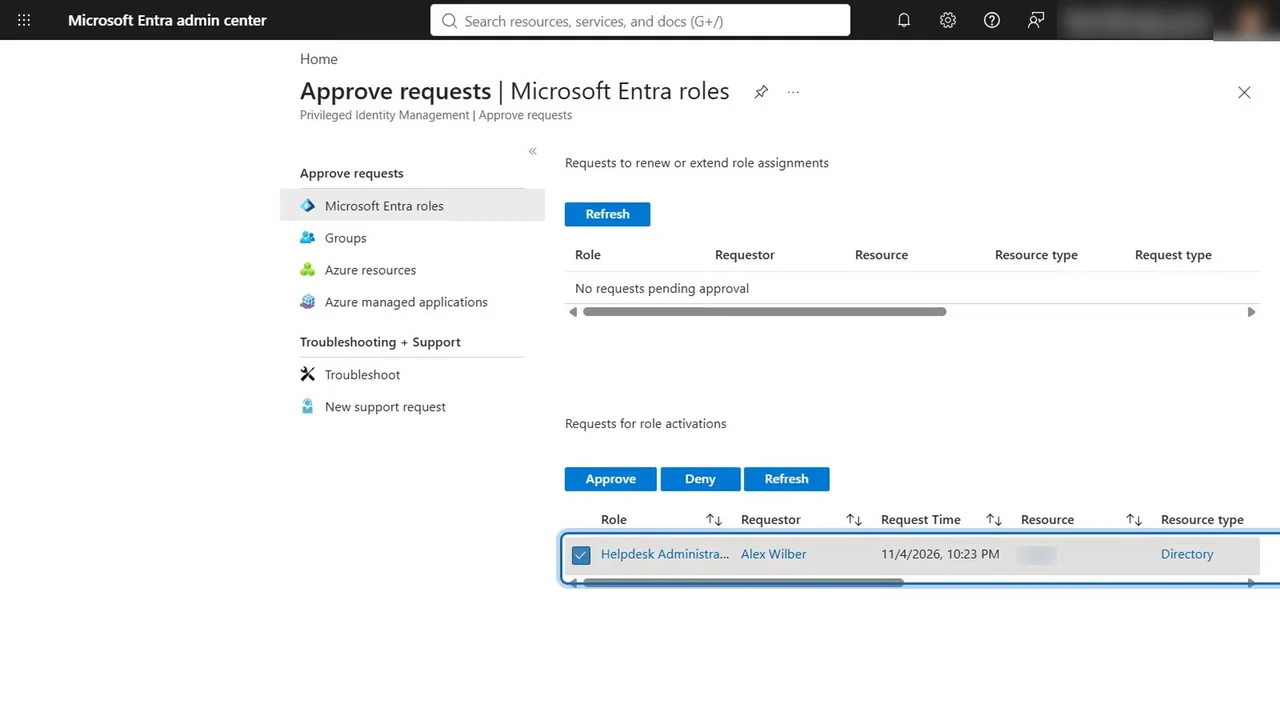
Megan opens Approve requests: Alex Wilber, Helpdesk Administrator, four hours, and his reason. She selects it, Approve, and records a justification: approved for the Friday shift.
How you know it worked
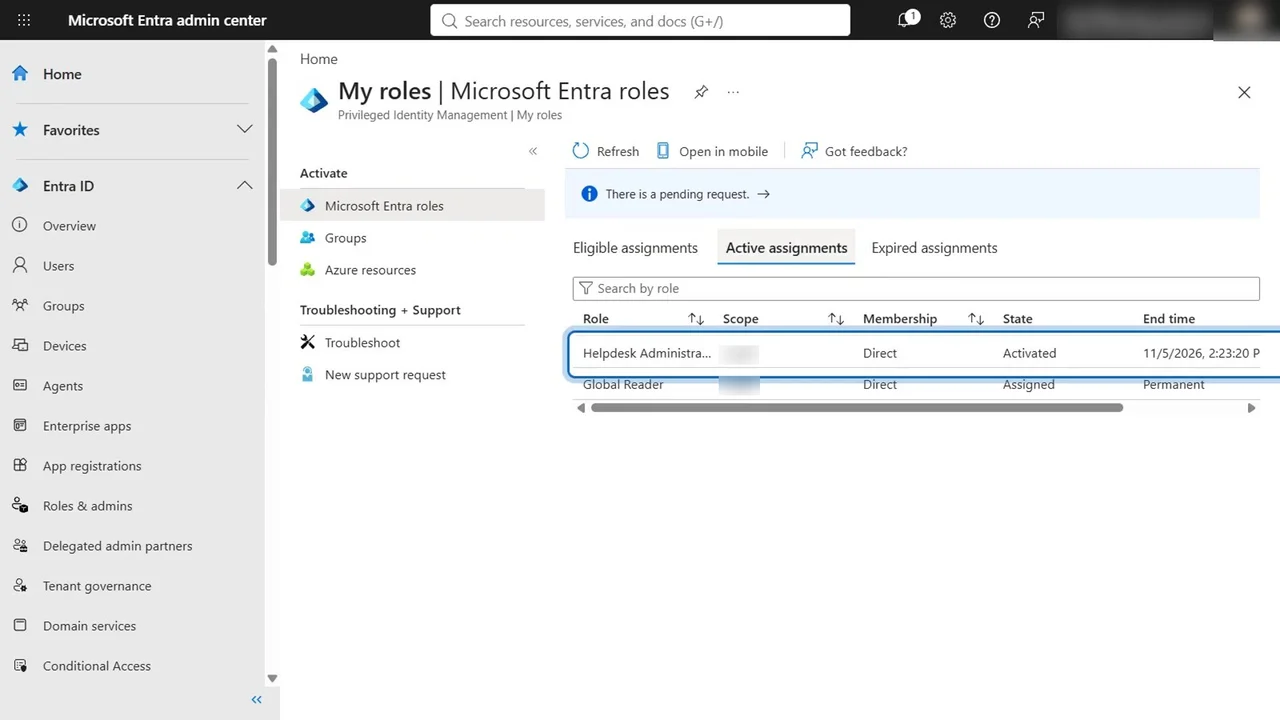
Back in Alex’s My roles → Active assignments: Helpdesk Administrator, activated, ending four hours from now. He can reset passwords now; this evening he cannot, and nobody has to remember to remove it.
What a tech lead should take away
- Zero standing admin access is the goal: make every privileged role eligible, with a short activation and MFA.
- Approval for the roles that can change everything, and a justification for all of them, so the audit trail explains itself.
- Keep two emergency access accounts outside PIM and Conditional Access, protected and monitored, as the way back in.
- PIM needs Entra ID P2 or ID Governance licences for the people who use it.
Do it yourself
- The full SC-300 courseEvery Part, free on YouTube, in order
- Hands-on lab guideThe exact steps, what it costs, how to clean up
- Practice simulationRehearse every click in your browser; the first lab is free
- Mock examFree 10-question sample, then the full timed mock scored by domain
Lab guides, practice and full mock exams come with a subscription. See the plans